Lesson 51: The Rule of Focus

In yesterday’s lesson, we talked about holding still.  The reason holding still is important is because of the Rule of Focus.  The Rule of Focus was once stated to me by a photography instructor as:  “If at least one thing isn’t sharp, your image will fail.”

If you’ve been following along since the beginning, you may recall that in Lesson 4, I talked about a photograph where nothing was sharp, yet it is considered by many to be among the most iconic rock and roll photos ever taken.  So, just like all other “rules,” this too can be broken.

That said, most of the time, it’s true that blurry photos don’t work.  In fact, getting sharp pictures is what drives many photographers to spend thousands of dollars on expensive lenses to get the sharpest image possible.

There are multiple parts to achieving focus.  We talked about motion blur caused by a moving camera in yesterday’s lesson.  We also talked about motion blur caused by a moving subject in Lessons 31 and 32.  Today, we’re going to talk about Depth of Field.  Now, I alluded to depth of field in Lesson 30 when we explored using a Hipstamatic lens that puts only a small portion of the photo in focus.  We also talked about depth of field in Lesson 41 when we talked about putting a human subject far from the background to increase background blur.

Today, let’s talk about some of the benefits of depth of field we get automatically when we shoot with an iPhone.  The easiest way to think of depth of field is to think of the scene you’re shooting.  The scene is 3 dimensional even though your photo has only 2 dimensions.  If you were to lay a ruler on the ground from the front of what you can see to the back of what you can see, the distance that remains in focus in your photo is called depth of field.

The point where sharpness begins is usually a bit in front of where you focused.  The point where sharpness ends is usually about ⅔ of the scene back from the point where you focused.  With the iPhone, the depth of field is far greater than with a DSLR camera with comparable settings because the sensor is so small.  This is a weirdness about depth of field–how small the sensor is affects depth of field in ways that are surprising if you don’t go into detailed, technical explanations about how light works to create images.  And, I promise, I won’t.

Here are the things that are important to remember:

  1. If you’re shooting a landscape, you generally want the photo to be sharp all the way from the front to the back.  To achieve this, try to keep objects closer than 10 feet out of the frame.  Then, select the closest object in the frame for focus.  The background will usually remain reasonably sharp.
  2. If you’re shooting a person, you generally want the person to be really sharp, especially the eyes, and you don’t care about the background–in fact, it would be better if the background were out of focus.  Focus on the person’s face or let the camera use facial recognition to achieve focus.
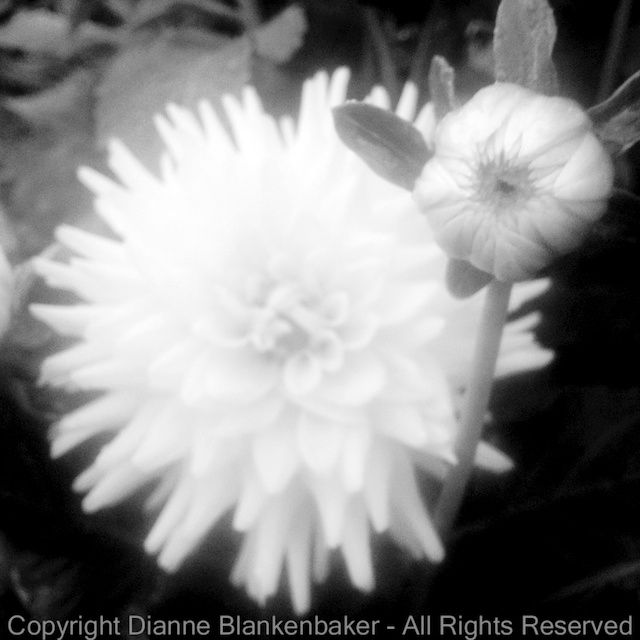
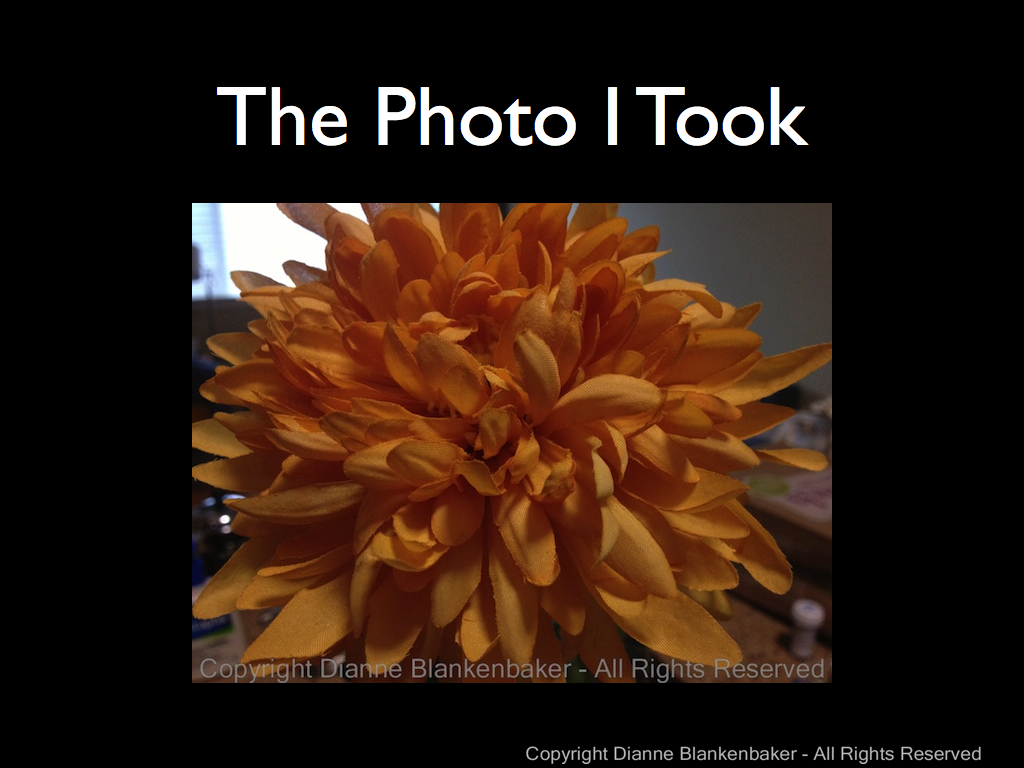
  3. If you’re shooting something up close, like the flowers I used in yesterday’s lesson, remember that you have to be a certain distance away to get sharp focus.  You might notice that the petals in the following photo that are closest to the camera are not sharply focused.  That’s because they were too close.  By backing away, you can get the entire bouquet in focus when you select the closest petals.

Your Assignment:  Choose a subject you’d like to have completely sharp.  Move closer and further away to determine how close you can get before the foremost part of the subject remains blurry.  Experiment with selecting different focus points to see the best place to choose focus to get the entire subject in focus.  Also try taking pictures of your favorite person to see if you can get their face sharp.  Don’t forget about the Rule of Holding Still.  If you have a landscape you can shoot, see what happens when you tilt the phone so the closest object is at least 10 feet away and you focus on that.  Try it again focusing far back in the scene and again focusing very close.  Which images have the most depth of field?  Which ones do you like best?

Lesson 50: The Rule of Holding Still

I’m not sure I previously stated this as a rule.  Since we’re reviewing the basics, I thought I would state this more directly:  hold still.  Unless, of course, you’re trying not to hold still.  But, we’ll come back to that one later.

We talked about holding the phone early on.  We also talked about different ways to prop your phone so it would be still.  And we talked about using image stabilization to help compensate for shake.

These all amount to the same rule:  hold still.

Not holding still creates blurry images.  The lower the light, the more your movement will cause blur.  If you find you consistently get slightly out-of-focus images that get worse in lower light, this probably means you were not born with the innate ability to hold an iPhone steady while taking a picture.

To show you how the amount of light available and the amount of light required to get a good exposure affects the amount of motion blur in the picture, I took 3 photos.  The first is with the flowers right under the light.  It’s pretty sharp.  The second is with the flowers a foot from the light with the exposure selected for the bright side of the flowers.  Not much difference in sharpness.  The last is the same as the second except that I asked the camera to expose the dark side of the flowers properly.  To let in more light, the camera also lets in more shake–lots of blur.

When we talked about image stabilization, I mentioned that the camera essentially waits for a moment when you’re not shaking to take the photo.  Here’s a side-by-side comparison of trying to get the dark side of the flowers exposed properly with and without image stabilization:

And here’s a second example with the flowers exposed for the well-lit portion:

If you don’t like waiting on the iPhone to decide when to take the shot (which can lead to missed moments), in the default Camera app, you can use the camera button on the screen to take a photo and create a pause between pressing the button and taking the picture by setting your finger on the button, steady yourself, and then release.  The picture is taken when you take your finger off the button.  This does not work with the volume-up button or Camera Awesome (at least not on my 4S).

I also mentioned using the headset volume-up button to take the picture as another option on the 4S or higher.  This works very well if you have a way to set your phone down, but I find it easier to press the volume-up button on the phone case than to hold the phone with one hand and use the headset when I’m hand holding.

Don’t forget about keeping your body still.  Stand with your feet wide–making a wider base will reduce sway.  If there’s a stable object you can lean against, use it.  Again, the lower the light, the more you need to worry about stabilizing yourself.  If you’re shooting in bright light, you probably won’t have motion blur problems unless you are really moving.

Your Assignment:  Try taking a photo in your house.  Indoor lighting is notoriously bad for iPhone photos.  Take a picture of something perfectly still without image stabilization turned on if you’re using the Camera Awesome app (or another app that has this feature).  Do you see blur?  Try looking at your photo on a computer screen if possible so you can tell.  Or zoom into the photo to check for blur.  Sometimes it’s too subtle to see well on the phone.

If you don’t have any blur, try less light or exposing a darker portion of the subject.  The point is to discover what level of light is required before you start having trouble holding the phone still.  Once you get to where you see a little blur, try as many of the techniques above as possible to see which works well for you to eliminate the blur.  It’s good to have several things to use for different situations as well as to combine techniques when the light is really low.

Lesson 49: The One True Rule

Coming up, we’re going to be looking at more apps and attachments and, soon I hope, I’ll be doing comparisons between the 4S and 5S.  But before we delve into more technology and gadgets, I think this is a good time to recheck on the basics.

First, let’s remember the very first lesson:  There are no rules.  I would like to amend this.  In fact, there is one true rule of photography.  That rule is that you must break all the rules if you want to take better pictures.  However, it only counts if you know you broke them.   The amazing thing that you will find (if you have not already) is that breaking a rule with purpose (even if you don’t realize it until after you’ve taken the shot) rather than out of ignorance results in a whole new level of discovery.

Sometimes, we have happy accidents.  If you ever watched “The Joy of Painting” with the ever-optimistic Bob Ross, you may recall Bob explaining that unexpected splatters of paint were really just “happy accidents” that ultimately resulted in a more interesting painting.

In photography, happy accidents are the moments when you just happen to get something amazing without really working at it too hard.  Sometimes, for example, we take a shot and something flies into the frame at just the right moment.  Sometimes we frame a subject because we like the way it looks without noticing there’s something in the frame that turns out to be the thing that makes the photo great.

Much more often, at least for me, happy accidents come in the form of imagining what we want to get, getting all setup, and then discovering that you can’t possibly get what you imagined because the background won’t work, the light isn’t right, the proportions of the things you’re shooting are different than you remembered, or some other thing that looked completely different in your mind than it does in reality and you come home with a completely different set of images than you imagined.

If you’re not imagining the images you want to create and then going out to shoot, well, don’t worry.  Most people don’t.  Most people think about their iPhone as a handy camera to pull out when an opportunity presents itself.  The thing is, not too many people get better at taking pictures that way.  Just as Bob Ross thought anyone could become a talented artist, he also thought it would take an investment of time and intention.  The same is true for photographs.  After all, good photos don’t grow on trees–not even happy little ones.  The more photos you take, the more likely you are to capture something really cool.  Even better, the more likely you are to recognize it.

Your Assignment:  I’ve placed some photos into the gallery for this post.  Can you identify which “rules” I broke in each example?  Decide if the photo works for you–do you like it?  If not, can you figure out what bothers you about it?

Lesson 46: Flower Power

For today’s lesson, I used Hipstamatic with the Helga Viking Lens and the Black Keys film.  What I’d like to focus on (sorry for the pun) is something called depth of field.  Now, if you’ve read my About page, you know that I’m not allowed to explain technical stuff in this blog.  I’m going to try to keep this as simple as possible:  depth of field is what we call the distance from front to back of the scene that is in focus.  Now that I’ve said that, I’ll warn you that that’s not entirely accurate, but let’s just leave it at that before I get into trouble with Gina.

When we looked at taking portraits in Lesson 41, we talked about wanting to keep some things in focus and other things not in focus.  That’s what depth of field is all about–how do you get what you want in focus without getting other stuff in focus?

One of the painful things about the iPhone (or any other smartphone camera) is that you have very little control over this whole Depth of Field thingy.  But let’s look at what happens when I use Hipstamatic to take some very close-up photos of flowers.

In the first photo, I was so close to the group of bright yellow flowers, the reflection off of them creates a haze around the blooms.  Part of the haze is caused by soft focus on all but one flower hiding in the shadows.  While I usually like sharp photos, there is something about this hazy effect that appeals to me.

In the second photo, the leaf in the foreground is what’s in focus.  The softer focus in the other leaves and the background fence cause the leaf and fence patterns to start to look a lot like each other.  Again, while I would normally consider this a failure because of the limited focus, there’s something appealing about this to me when combined with the Hipstamatic effects.

In the third photo, the blades of grass are very sharp in the foreground, but only a few of them.  The rest blend into a mass of haze.  I’m still trying to decide if I like this or not, but it’s a good demonstration of what we would call a shallow depth of focus–only an area a couple of inches deep in the scene is in focus.

The fourth photo really brings this effect home.  The small, tall flowers in front are sharp while the big flowers in the background are soft.  I want to love this photo, but I would love it more if the foreground flowers were lighter and stood out more.  The background flowers would create a nice backdrop if there were more contrast between the background and foreground.

The fifth photo breaks one of the rules of photography.  That is, don’t have stuff in the foreground that’s out of focus.  Notice the big white flower completely blurred in the lower right.  I like this photo anyway.

Finally, my favorite, the sixth photo focuses sharply on an unopened bud with a large bloom out-of-focus in the background.  I would prefer this photo in a rectangle so that the little leaves around the bud weren’t cutoff, but I like that it’s less expected for the focus to be on the unopened bud than on the fully opened flower.

In all of these examples, I had only one way to control what was in focus and what wasn’t–distance to the subject.  By getting too close to some subjects, they were out-of-focus (like in photos 1 and 5).  Or, by getting just far enough away to focus sharply on the thing that was closest, I left the background out of focus like in photos 2, 3, 4, and 6.

Your Assignment:  See what happens when you get very close to a subject.  Pick a flower garden and shoot away.  Can you get the subject in focus?  How many other things are in focus?  Can you get closer?  When do you start to have problems getting the closest object in focus?  Do you notice how far away the background objects need to be before they fall out of focus?  Which do you prefer:  out-of-focus foreground objects or out-of-focus background objects?

Lesson 14: Another Way to Be Hip

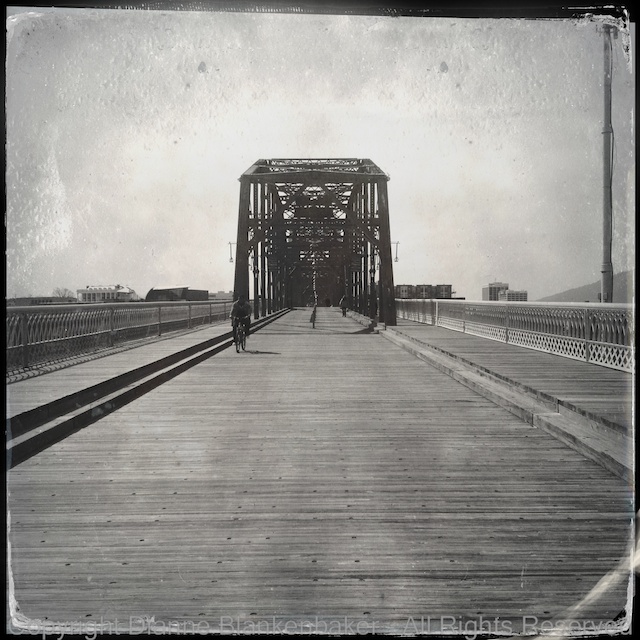
In yesterday’s lesson, we used an included “lens” and “film” in Hipstamatic to create some interesting effects in our photos. One of my personal favorite combinations in Hipstamatic is the combination of the Helga Viking lens and the D-type plate film, which creates a black and white, tintype effect.

However, that lens and film combination costs extra, so I thought today we would look at how to create a similar effect using the Camera Awesome app, downloaded in lesson 7 and further explored in lessons 8 and 12.

One of the differences between the two apps is that in Hipstamatic, you frame and shoot and you’re done. In Camera Awesome, you have more decisions to make while shooting and then you apply different edits to get the effects. The disadvantage is the time it takes. The advantage is that you have a “normal” photo to work with and you can always get back to the original to try something different. In Hipstamatic, you get what you get.

I often take photos with Hipstamatic and then take a similar photo using Camera Awesome or my DSLR so that I have both the Hipstamatic version and something I can control. I always have to laugh when I’m standing somewhere with my DSLR hanging around my neck while I’m taking a picture with my iPhone.

In any case, let’s take a look at what the tintype effect in Hipstamatic looks like compared to using edits in Camera Awesome.

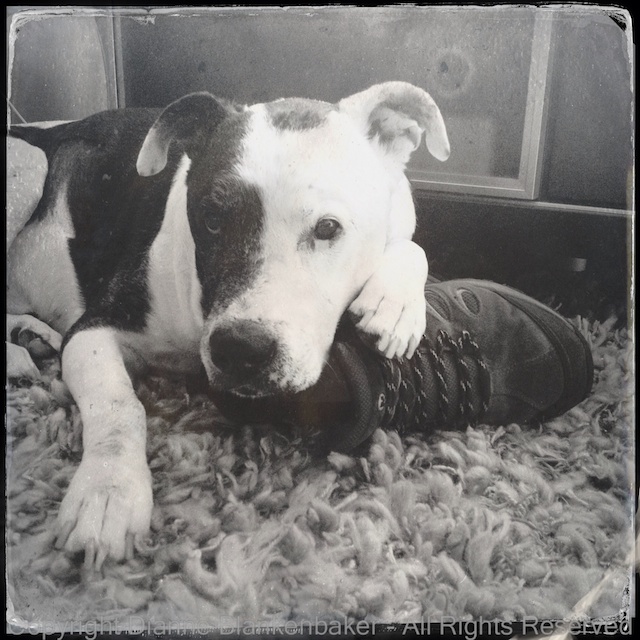
This is what I got using the Helga Viking lens and D-type plate film in Hipstamatic of my dog taking possession of my husband’s shoes:

IMG_0012

I took a similar image using Camera Awesome and started with this:

IMG_2882

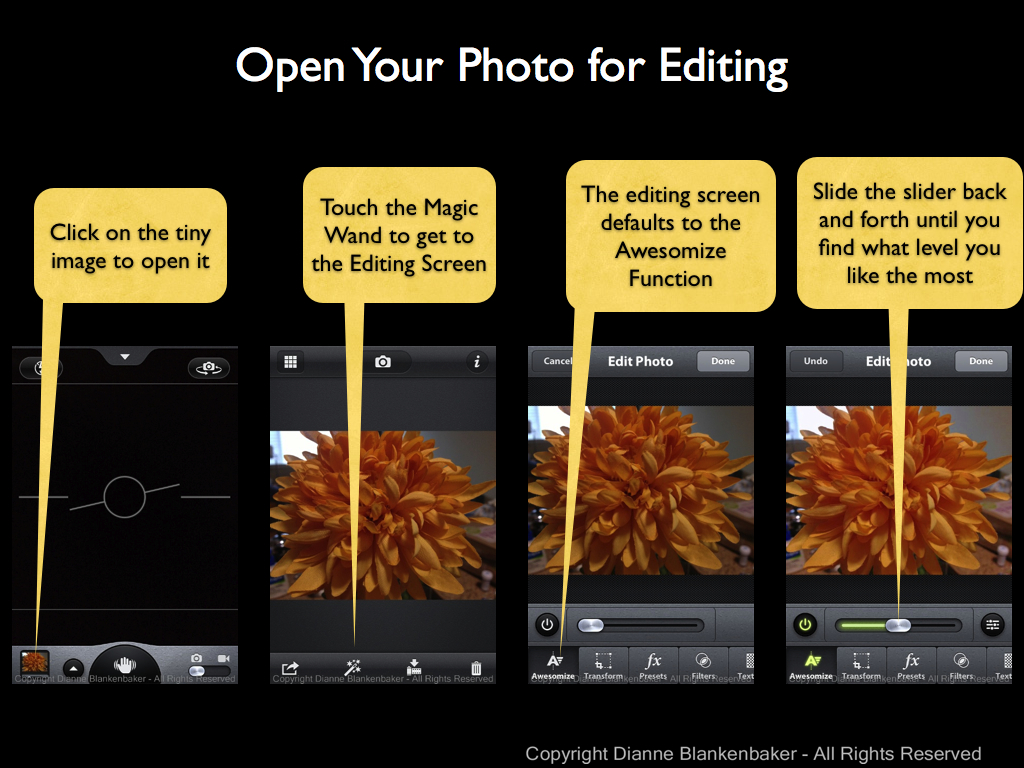
I tapped the magic wand to get into the edit screen, and then did the following (click to enlarge):

camera awesome vintage.001

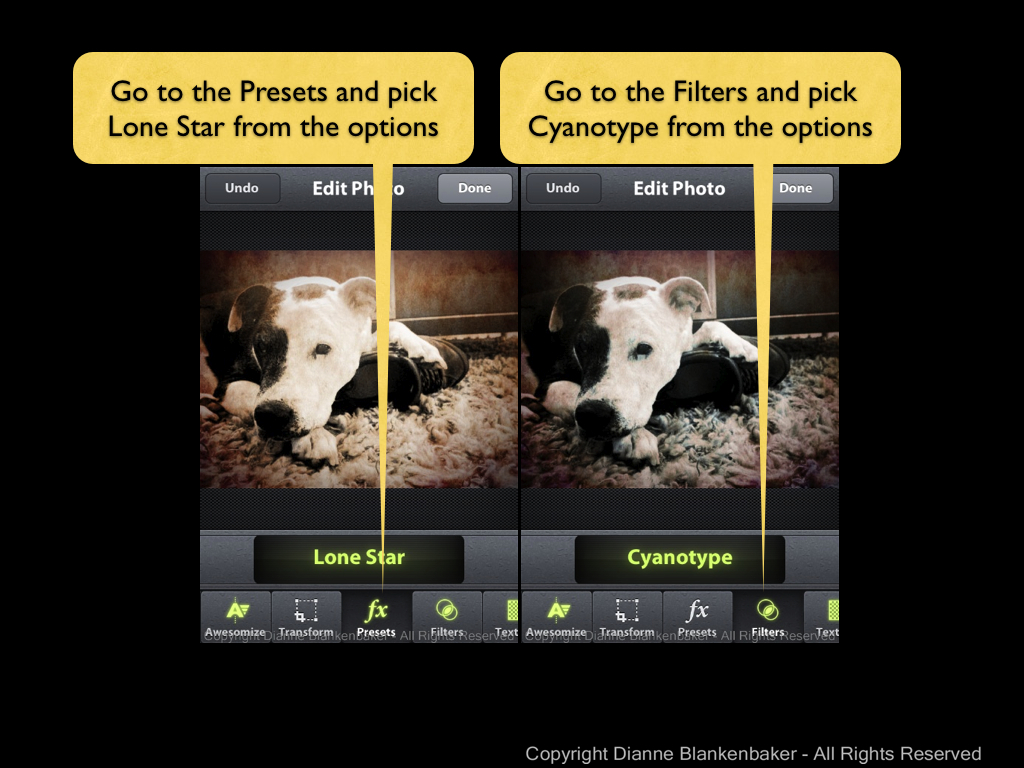
Next, I added a preset and a filter. If you need detail instructions, you can look back at lesson 12, just choose the Lone Star preset and the Cyanotype filter.

camera awesome vintage.002

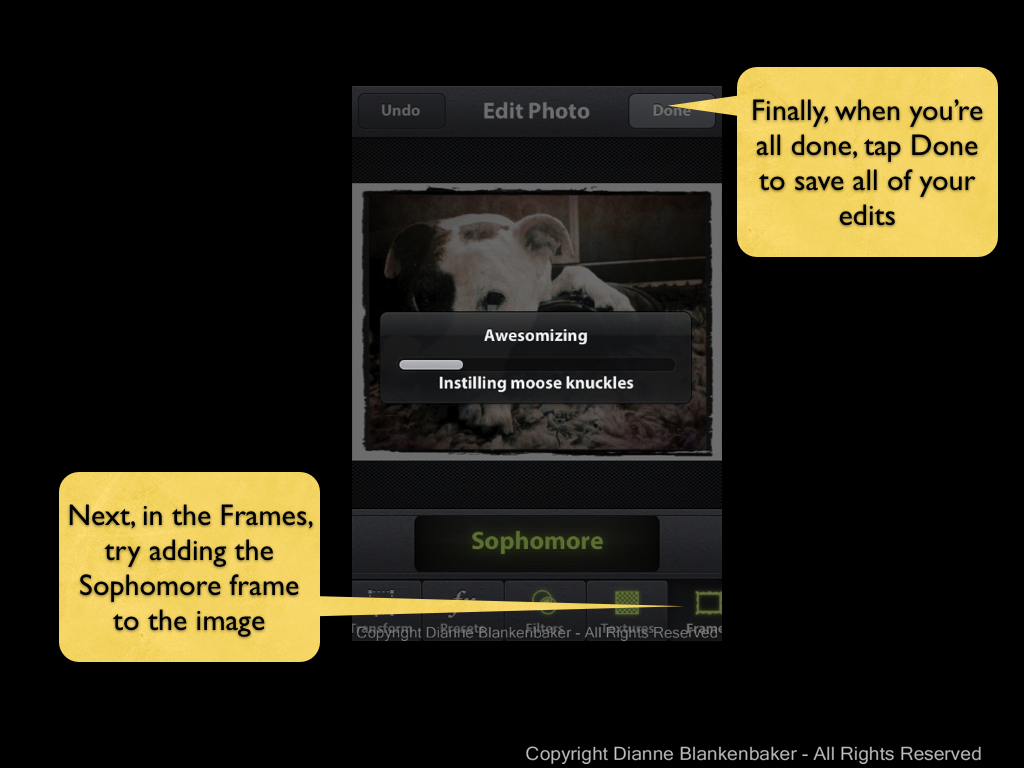
Finally, we’re going to add a frame to the photo–I didn’t show all the screens, but it’s basically a repeat of selecting a filter. The main difference is when you’re done, it’s time to tap the done button.

camera awesome vintage.003

Now, let’s compare the Hipstamatic to the Camera Awesome version:

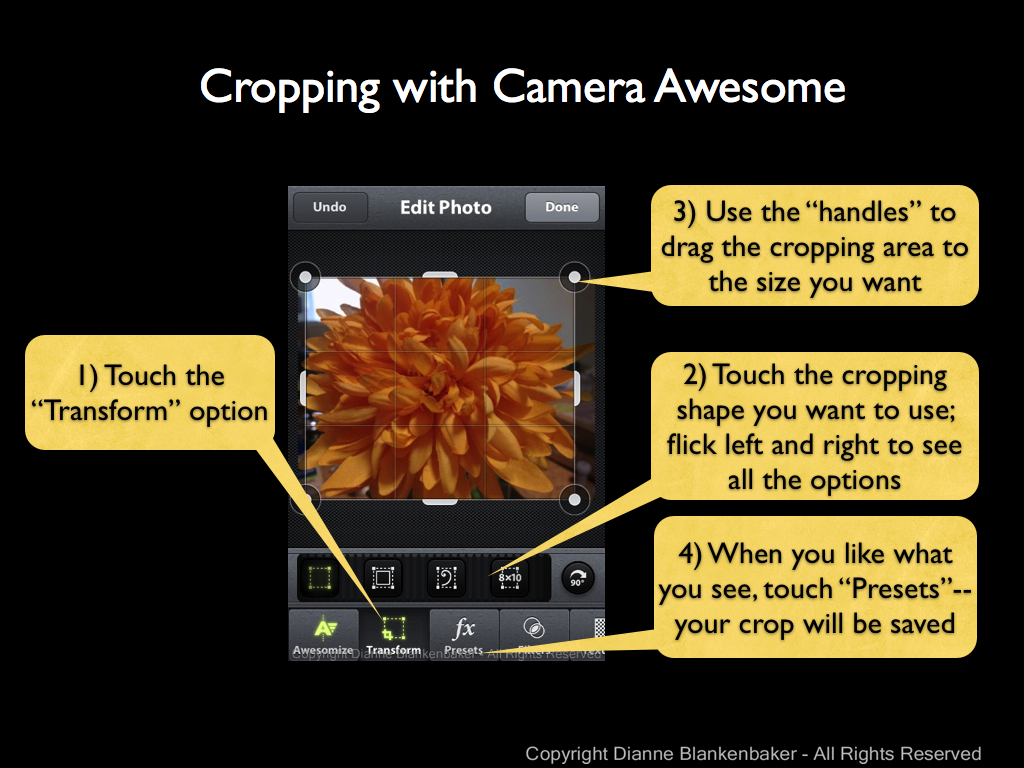
I did this same exercise with a landscape photo of the fog in the hills this morning. I added a square crop to better emulate the Hipstamatic look, which is done using the “Transform” option from the editing choices. Here’s a comparison of the results:

Your Assignment: Find three types of subjects to photograph: a person or pet to photograph up close, a room or garden to photograph from a bit further back, and a large open area to photograph from far away (like up the length of your street). Using Camera Awesome, photograph all 3 of these subjects. Now try applying the editing instructions to see which of them you like best with this type of look. Which kind of subject do you like best?


Lesson 13: Getting Hip

OK, I was going to wait before introducing a new app.  Especially another one that costs money.  But, I can’t help myself.  Today, we’re going to look at Hipstamatic.  The good news is that it’s available for several types of phones; the bad news is that it’s $1.99.  And, there are so many add-on packs that you’ll probably want to spend several dollars before you’re done with this app–it’s a little addictive.

But, we’re going to start with some “included equipment” to keep the cost down.

Hipstamatic’s tag line is “digital photography never looked so analog.”  Essentially, through the magic of software, the app creates images with the characteristics of old, analog equipment.  The irony is wonderful.

If you look in my iPhonography Gallery, you will find many Hipstamatic images.  The vast majority of the ones I chose to share were created using an add-on pack that simulates a tin-type effect.  However, since that’s not included, I’ll save that one for later.

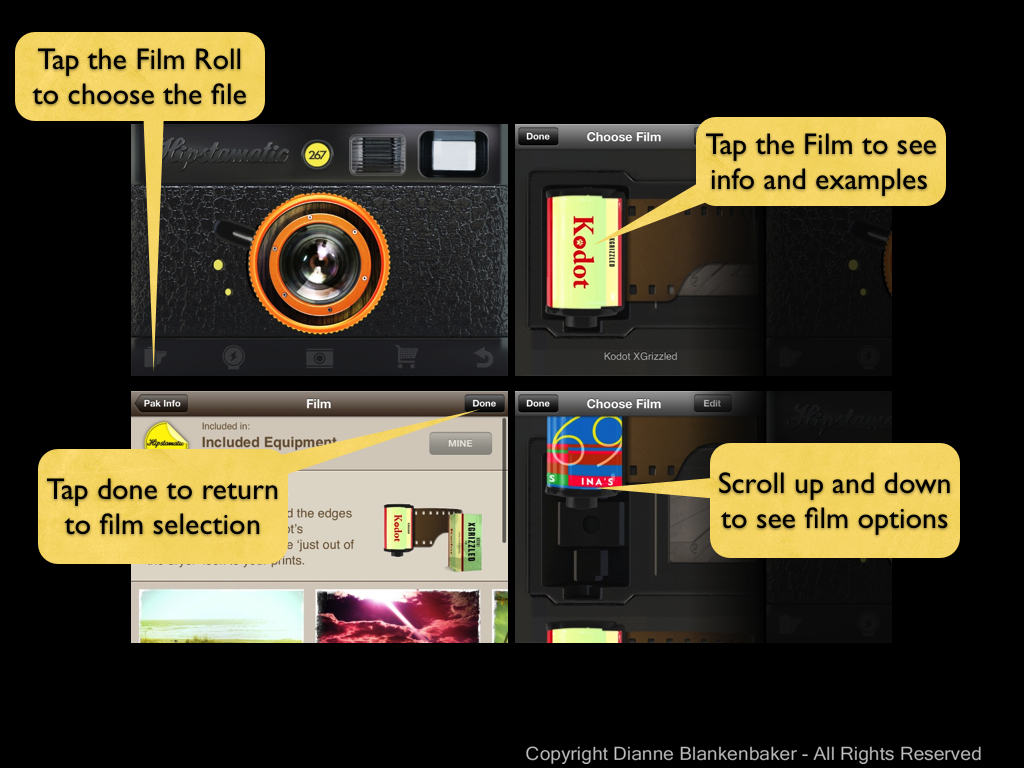
The way Hipstamatic works is that is allows you to change the “lens,” “film,” and “flash” to create the look of the historical equipment you choose.

Today, we’re going to select the film and lens, but let’s not use the flash.  To do this, click to enlarge the following instructions:

20130809 13 Getting Hip.001

Now that you’ve got the hang of switching lens, let’s choose the Buckhorst H1 lens (with the bright orange circles).  Next, we’ll choose the film.  Click to enlarge the instructions:

20130809 13 Getting Hip.002

Let’s choose the Kodak XGrizzled film for today’s lesson.

I have found it takes a while of shooting with a particular film and lens combination to figure out what effects they create.  I suggest not trying another combination until you feel like you know what that combination will do.  You can save the combination by tapping the star and creating a favorite.

Now, let’s try taking some photos.  Click to enlarge the instructions on how to get back to camera mode and enlarge the viewing area:

20130809 13 Getting Hip.003

Now it’s time to take photos.  Hipstamatic will create the effects and save the photos to your camera roll automatically.  Once you find a combination of film and lens you love, you’ll find it’s an incredibly fast way to get a really cool effect–very hip.

After you’ve taken some photos, here are instructions you can click to enlarge so you can see how to find your photos from inside the app:

20130809 13 Getting Hip.004

To get back to the camera mode, tap the image to see a frame with buttons and tap the bright yellow camera icon in the upper right corner.

One last pointer about Hipstamatic:  it creates square images.  This can have an amazing effect on how you view the world.  It also makes our earlier lesson on symmetry come in handy–symmetry works particularly well in square images.  Of course, asymmetry will also work if that’s what the subject calls for.

Your Assignment:  Go photograph everything!  Photograph small stuff up close, big stuff from far away, bright lights, indirect lights, skylines, dogs’ noses, and your key chain.  Photograph anything and everything that will hold still long enough for you to grab a shot.  It’s digital!  You can delete what you don’t like.  Take a look at what you got and decide the following:

  1. What kinds of subjects work really well with these effects?
  2. What kinds of subjects really don’t work well?
  3. Why do they work or not work?
  4. Can you take something that didn’t work and make it work by changing the angle or distance you’re shooting from?  Try moving your body up and down.

What do you think?  Is this a film/lens combo you can get addicted to?

Lesson 12: Awesomization

Today we’re going to do something really fun.  We’re going to take an ordinary photo and turn it into something complete unique from anything you’ve ever produced with an ordinary camera.  This lesson does require an iPhone.  We will be using the Camera Awesome app we downloaded back in Lesson 7.

I started by applying yesterday’s lesson on symmetry to taking a very close-up picture of a large, silk flower.  You can choose whatever you like for your subject and framing, but taking a close-up is probably a good idea for today’s lesson.  Use the Camera Awesome app to take your photo as a starting place.

20130808 A Little Fun.001

Now that you have a picture, you’re going to open it and perform several editing steps all inside the Camera Awesome app to create a completely different look.  Start by opening the photo in the app and getting into the editing screen as shown in the example below (click to enlarge).  Also try the Awesomize slider to see if it improves your image.

20130808 A Little Fun.002

Next, we’ll try the “Transform” option to apply cropping to really get rid of any distracting background we can.  You’ll notice in my example below (click to enlarge), I still have a distracting bright area in the upper left corner of the photo even after I crop.

20130808 A Little Fun.003

Now let’s get really creative!  Let’s try the presets available.  Now, Camera Awesome offers a bunch of presets if you keep scrolling through the categories (flick to the left to see more groups of presets).  However, only the first category is free.  You have to pay $5.99 to get the other options.

20130808 A Little Fun.004

In this case, I chose Road Trip because I liked that it both reduced the glare of the bright spot and brightened the flower in a nice way.

Next, I decided to apply a filter.  Again, only the first category of filters is free.  I picked the Cyanotype because, combined with the Road Trip preset, it did some pretty cool things to my photo.

Once you’ve picked the filter you like (click “Undo” if you don’t like any of them), it’s time to click the “Done” button.  This applies your changes and save the edited image.  But before you go anywhere, make sure you also export at least your edited image.  (You may also want to export the original image.  You can go back to the same photo to export the original after you export your edited version.)  See the following example (click to enlarge):

20130808 A Little Fun.005

Now your lovely new picture is in your Camera Roll.  You can open it up and view it full screen and share it at will.  This is what my final picture looked like:

Awesomized

And this is what the original and edited version look like side-by-side:

20130808 A Little Fun.007

You’re Assignment:  Pick a subject that’s interesting close up and has some texture or a pattern of some kind.  A big, silk mum is great because it has a very dimensional texture vs, say, carpet.  However, even carpet can be interesting up close.

Use Camera Awesome to take a picture–remember to focus and expose separately if that helps.  Make sure you’re far enough away that the iPhone can focus–if you’re pictures keep coming out blurry, you may be too close.

Now use the step-by-step instructions above to play with the editing capabilities of Camera Awesome until you get an image you like.  Don’t forget to export it!

Which image do you prefer?  The original or the modified picture you created?

Lesson 11: The Rule of Symmetry

Back in lesson 2, we talked about the rule of thirds.  I showed you how to turn on the rule of thirds grid in your iPhone and gave some examples of how images can be improved by applying this rule.  Today, we’re going to talk about another rule, the rule of symmetry.

The rule of symmetry can be stated as:  if what you’re shooting looks symmetrical, don’t mess with that.  Often, subjects like architectural structures, moons, subjects with reflections in water, and anything round look better when they are more or less centered in the frame.  Sometimes, people do things that make great symmetrical photos as well. 

I pulled out a few examples from photos I’ve shot in the past.  I added an example that used a DSLR just to make the point.

In this example, I lined up the moon right on the center vertical line of the image and allowed the shapes of the bridge to create a nearly symmetrical image.  It bugs me that the bridge elements are not identical on either side, but that’s because each section of the bridge is progressively larger.  To make it symmetrical, I’d have to shoot at an angle (which might be worth trying).   Click on the image to enlarge. 

symmetry.001

In the next example, this is a pretty classic way of doing symmetry.  I was on a business trip and took a quick photo of a road leading to an arched entrance to a large courtyard in Madrid.  This is an iPhone photo taken at the peak of the afternoon sun, creating some very bright areas in the photo, but it is nearly symmetrical.

symmetry.002

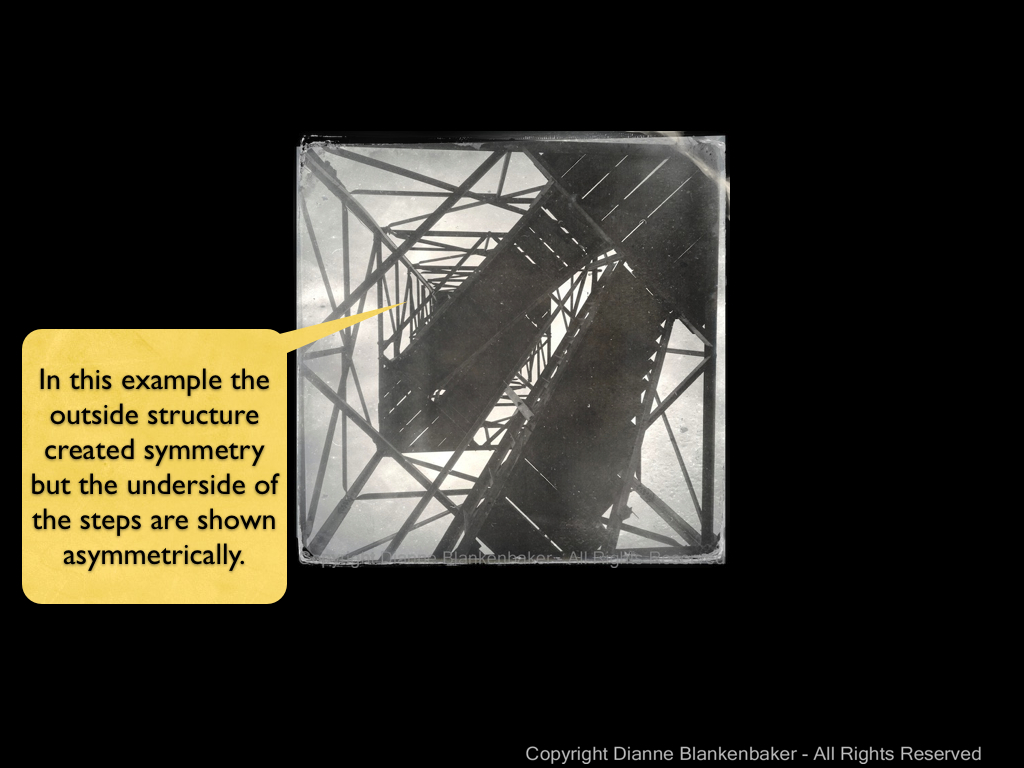
The next example shows a photo taken by laying back on some steps that lead up a fire tower in a park.  The outside frame of the structure is quite symmetrical, but the stairs add a slightly off-balancing element.

symmetry.003

Finally, in this image, I unconsciously applied a slightly revised rule of thirds and the rule of symmetry.  The bridge is at about the top grid line for the rule of thirds, but the entire subject is centered on the vertical center of the photo.  This helps capture the uphill climb to the bridge as well as draws the eye more effectively to the bridge itself.

symmetry.004

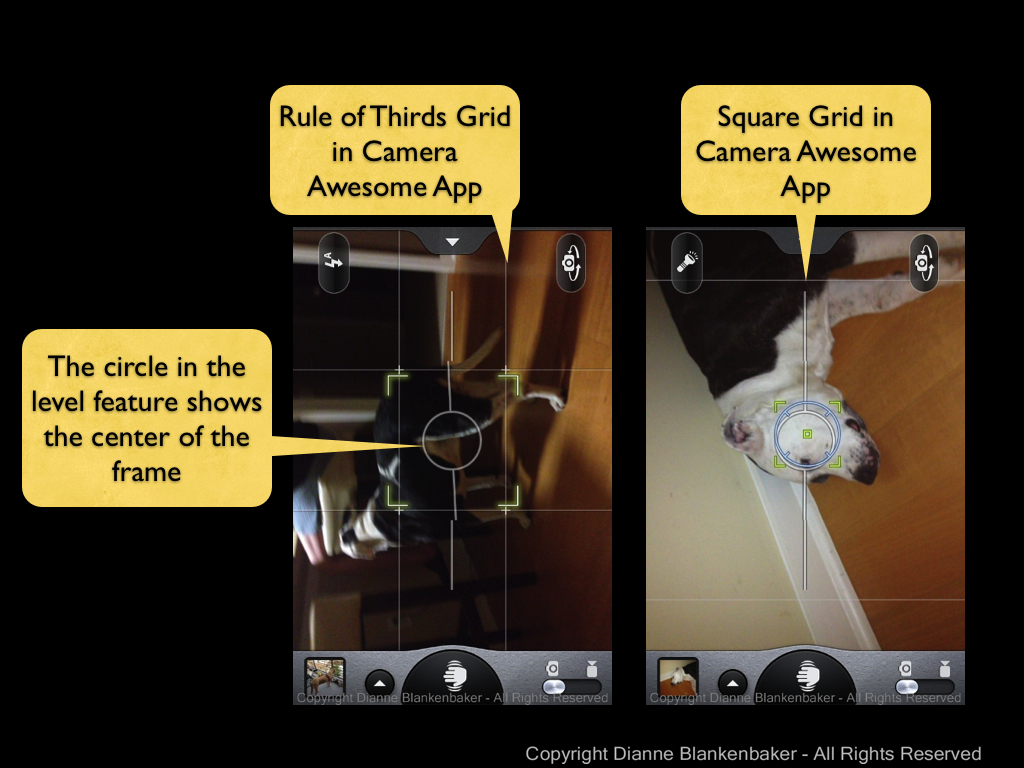
To frame a shot symmetrically, I just leave the rule of thirds grid on.  However, if you’re using the Camera Awesome app, you can also choose a square grid, which can be helpful if you’re planning to crop the image to a square later or if it just helps you predict whether you’re image will be symmetrical or not.  To select the guidelines you want to display, just tap the tab at the top of the screen.  A “drawer” of options slides out and you can choose what you want to use.  We’ll stick the rule of thirds and square options right now.

IMG_2811

If you also took lesson 7, you probably have your level turned on in the Camera Awesome app.  The center circle for the level also indicates the center of your frame, which is another way to determine symmetry.

symmetry.005

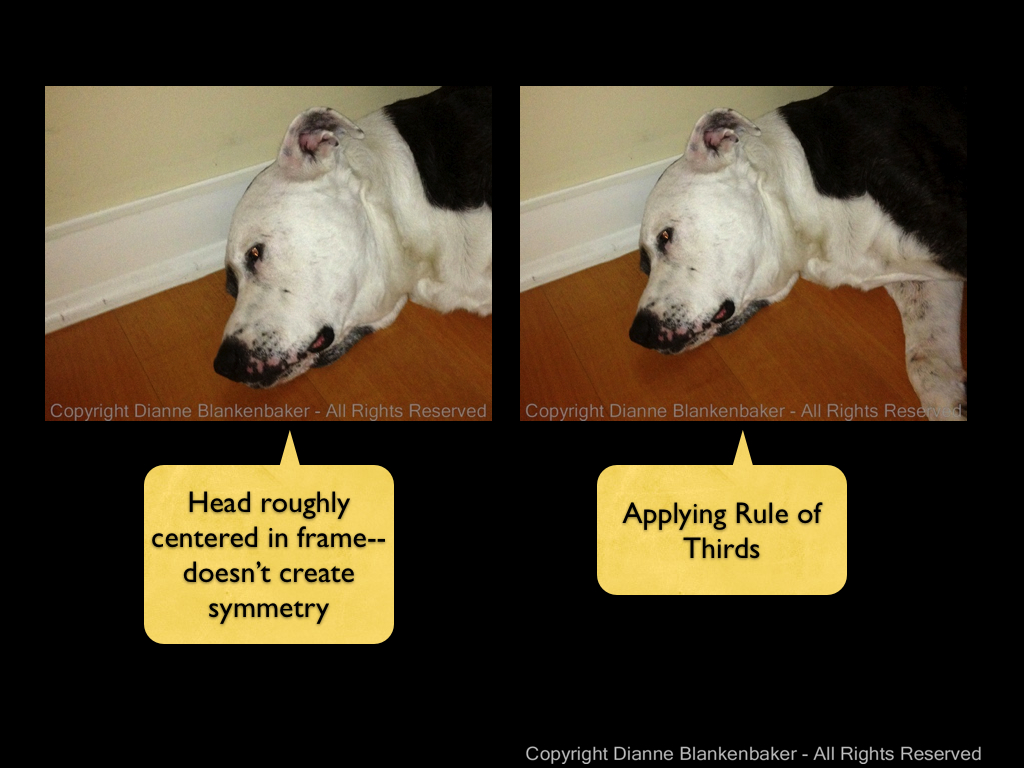
Now, I just want to show one example of what happens when you try to treat a non-symmetrical subject like it’s symmetrical.  My dog is not symmetrical (at least not a this angle).  When I try to create symmetry with his head by taking a picture with his head in the middle, I don’t actually get any symmetry in the image at all.  From this angle, he’s all rule of thirds.

symmetry.006

I wanted to show how my dog can look symmetrical if photographered from head on, but my dog wasn’t particularly enthusiastic about modeling for me tonight.


Your Assignment:  Look for symmetry around you. Taking a photograph up a flight of steps, head on to a person or pet, straight at a doorway, or centered on a round flower will all create symmetry.  Try different subjects that have their own symmetry to them and see which ones you particularly like shot symmetrically.  Try combining symmetry with the rule of thirds and see what you get.  What kinds of subjects did you come up with that work well symmetrically?

Lesson 10: Taking Stock

The inspiration for these lessons, my best friend Gina, reports that her photos are getting worse instead of better.  This is a common experience–there are many reasons for this phenomena:

  1. You are developing an eye and you are seeing more of the shortcomings of your photos than you did in the past.  A photo that you thought was the best photo ever suddenly looks flawed with new found knowledge that influences your taste.  You might look back at the photos you selected in Lesson 1 to see if you see flaws in them you didn’t notice when you selected them.
  2. You are learning new skills that take time to get comfortable with.  A certain amount of physical dexterity is required to hold an iPhone level and stable while you choose focus and exposure options and click the button to take the photo.  You may not have developed the fine motor skills required to do this well.  You are also learning new things to think about when you set up to take a photo.  It can be confusing to have to decide which app to choose, how to apply the rule of thirds, think about holding the iPhone with good form, and decide how to set exposure and focus.
  3. In Lesson 1, I told you there were no rules.  But in the subsequent lessons, I introduced a series of “rules.”  When we are young and learning our language for the first time, we lack the experience to know when a new rule doesn’t apply.  For example, children often add “-ed” to the end of words inappropriately when they first start acquiring the skill of forming the past tense in English:  “I goed to the store with Mommy.”  Similarly, when you are learning a new rule, it’s hard to judge when to make exceptions.
  4. If you are dutifully doing the assignments at the end of each exercise, you are probably photographing whatever is most convenient to complete the exercise.  How interesting photos are is largely dependent on the subject you’re photographing.  Although we will eventually learn how to make seemingly uninteresting things interesting, if you look back at the photos you picked in Lesson 1, you may find that they are of particularly interesting places or people.  It’s hard to make up for that with basic skills.
  5. The 9 lessons so far are not enough to take your photos from ordinary to extraordinary.  I suggest looking at the example photos I used in the lessons (included in this post for your convenience).  You might notice that none of them appear in my iPhonography Gallery page.  This is because I don’t like them.  They are not great photos–they are exercises.  We have not yet gotten to lessons that expose the power of using an iPhone as a camera.  That power is not in its ability to capture great details or strong contrasts.  The power of the iPhone is in the range of applications available to easily do really creative things with the photos you take.  Be patient–we’ll get to those lessons.
  6. In digital photography, the equivalent of developing film is called post-processing.  This means after the photo is taken, it’s adjusted using software to make it look better.  We haven’t gotten to using any of the tools available for adjusting photos, so you are looking at photos that are merely “negatives.”  We’ll get to post-processing–just know that your photos aren’t really done yet.

Your Assignment:  Take a look at the photos you created as part of each lesson.  Take stock of what you learned from each exercise.  Do you have better control of where you focus?  Are you framing your subjects in new ways?  Are you better able to control the exposure you get?  Congratulate yourself for what you’ve learned, no matter what the photos look like.

Lesson 9: Combining Two Exposures into One Photo

Yesterday we addressed how you can use Camera Awesome to set the exposure and focus separately in your iPhone.  The advantage is being able to get a better overall exposure while still keeping the photo sharp where you want it.

Today, we’re going to learn another technique for getting the exposure you want that’s particularly useful when photographing a landscape scene like yesterday’s where there is a bright sky over a dark landscape.

We’re also going to download a second app called Pro HDR.  Good news for non-iPhone users–it’s also available for Android!  The bad news for all is that it’s not a free app.  It costs $1.99, so you’ll have to decide if you want to spend the money to experiment with it for today’s lesson or not.  If not, you can try with the iPhone’s default camera app, which has an HDR setting in the Options menu.  I do not use this setting because I haven’t found it to work well for me, but perhaps you will have better luck.

At the risk of getting too technical, HDR stands for High Dynamic Range.  It is not related to High Definition technology.  What the Pro HDR app does is take one photo exposed for the darkest areas of the scene and a second photo for the lightest areas.  Then it automatically combines the two into one image, choosing the best exposure for the different areas in the photo from the two photos and sprinkling in a little magic to make the photo look really good.

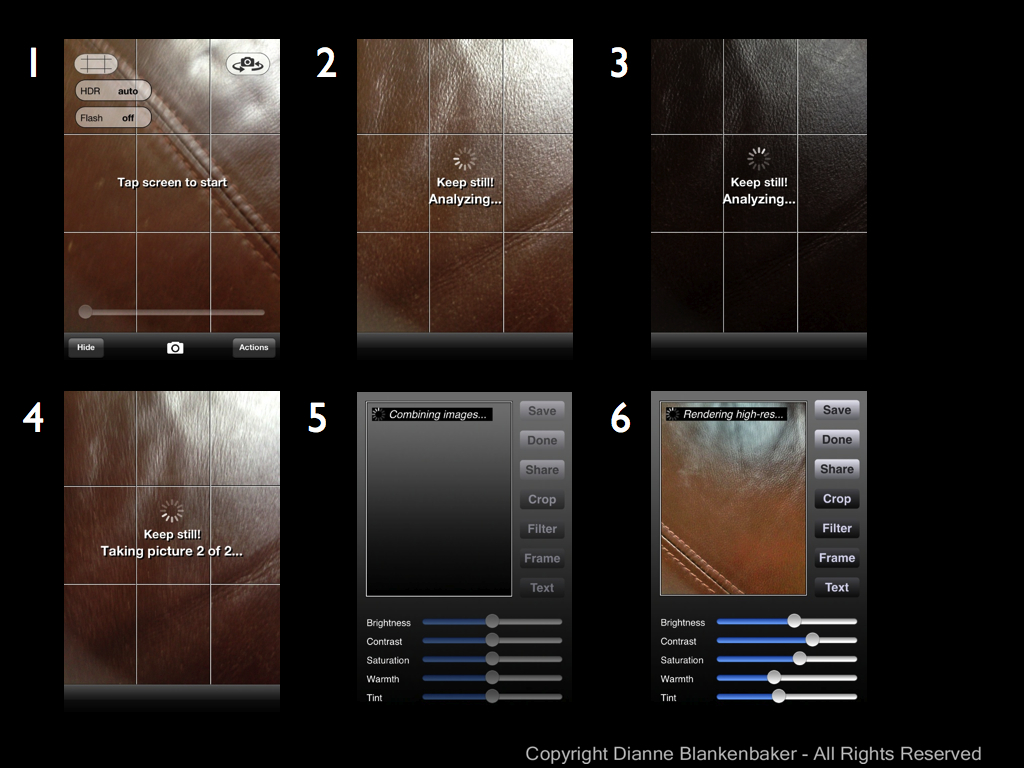
Because it’s all automated, it’s very easy to use and doesn’t require knowing anything about how HDR works.  The only thing it requires is that you hold the phone very stable while it does some analysis and then takes the two photos–this can take a while, so make sure you’re using good form holding the phone and in a position you can maintain.

To start the process, you launch the app, frame the scene the way you want and then tap the screen (you can also push the volume up button, but the volume will annoyingly pop–it does still work) to start the process.  Then, you just hold still and watch it do its magic (click to enlarge):

HDR slides.001

When I used this app while at Snooper’s Rock yesterday, these are the two photos it took and the combined image that resulted (click to enlarge):

HDR slides.002

You’ll notice that the combined image has much better exposure for the sky than in the first image and a much better exposure of the trees in than in the second.  It works very nicely for these types of subjects.

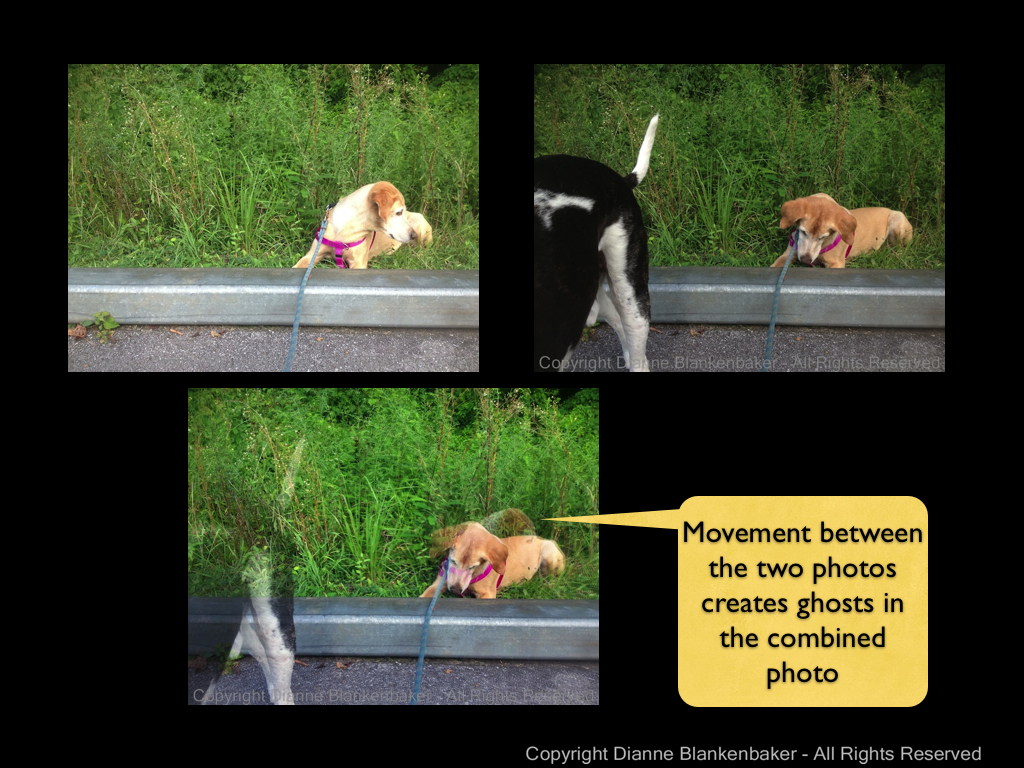
Where this technology doesn’t work so well is when you have people walking in and out of your scene or if your subject is in motion.  Check out this example of my dog’s best bud (and my dog’s tail end):

HDR slides.003

This is always disappointing to me as my black-and-white dog would be much easier to expose using Pro HDR.  However, even though he stood very still in the next image, the motion of his panting was enough to cause his throat to get blurry in the combined image:

HDR slides.004

You’re assignment:  Download Pro HDR (or turn the HDR option on in the iPhone default app).  Choose a scene with both very bright and very dark areas.  Now take a picture with the default app, with the Camera Awesome app using the methods we explored yesterday and the day before, and, finally, using Pro HDR.  Compare the images.  Do you feel like you got your $1.99 worth from the Pro HDR app?
Here’s my example comparing the results from the 3 apps:

comparison of apps.005.005

Bonus Assignment:  See if you can create some really cool ghost images using Pro HDR.  Sometimes this can be a really fun effect.