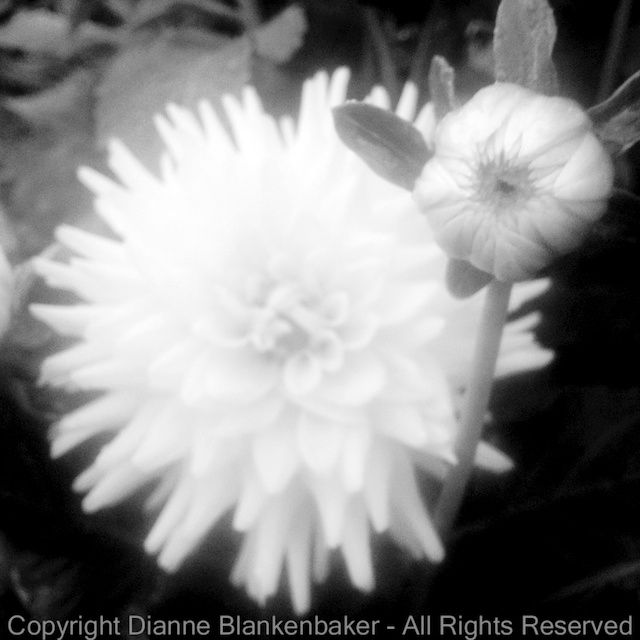
Lesson 51: The Rule of Focus

In yesterday’s lesson, we talked about holding still.  The reason holding still is important is because of the Rule of Focus.  The Rule of Focus was once stated to me by a photography instructor as:  “If at least one thing isn’t sharp, your image will fail.”

If you’ve been following along since the beginning, you may recall that in Lesson 4, I talked about a photograph where nothing was sharp, yet it is considered by many to be among the most iconic rock and roll photos ever taken.  So, just like all other “rules,” this too can be broken.

That said, most of the time, it’s true that blurry photos don’t work.  In fact, getting sharp pictures is what drives many photographers to spend thousands of dollars on expensive lenses to get the sharpest image possible.

There are multiple parts to achieving focus.  We talked about motion blur caused by a moving camera in yesterday’s lesson.  We also talked about motion blur caused by a moving subject in Lessons 31 and 32.  Today, we’re going to talk about Depth of Field.  Now, I alluded to depth of field in Lesson 30 when we explored using a Hipstamatic lens that puts only a small portion of the photo in focus.  We also talked about depth of field in Lesson 41 when we talked about putting a human subject far from the background to increase background blur.

Today, let’s talk about some of the benefits of depth of field we get automatically when we shoot with an iPhone.  The easiest way to think of depth of field is to think of the scene you’re shooting.  The scene is 3 dimensional even though your photo has only 2 dimensions.  If you were to lay a ruler on the ground from the front of what you can see to the back of what you can see, the distance that remains in focus in your photo is called depth of field.

The point where sharpness begins is usually a bit in front of where you focused.  The point where sharpness ends is usually about ⅔ of the scene back from the point where you focused.  With the iPhone, the depth of field is far greater than with a DSLR camera with comparable settings because the sensor is so small.  This is a weirdness about depth of field–how small the sensor is affects depth of field in ways that are surprising if you don’t go into detailed, technical explanations about how light works to create images.  And, I promise, I won’t.

Here are the things that are important to remember:

  1. If you’re shooting a landscape, you generally want the photo to be sharp all the way from the front to the back.  To achieve this, try to keep objects closer than 10 feet out of the frame.  Then, select the closest object in the frame for focus.  The background will usually remain reasonably sharp.
  2. If you’re shooting a person, you generally want the person to be really sharp, especially the eyes, and you don’t care about the background–in fact, it would be better if the background were out of focus.  Focus on the person’s face or let the camera use facial recognition to achieve focus.
  3. If you’re shooting something up close, like the flowers I used in yesterday’s lesson, remember that you have to be a certain distance away to get sharp focus.  You might notice that the petals in the following photo that are closest to the camera are not sharply focused.  That’s because they were too close.  By backing away, you can get the entire bouquet in focus when you select the closest petals.

Your Assignment:  Choose a subject you’d like to have completely sharp.  Move closer and further away to determine how close you can get before the foremost part of the subject remains blurry.  Experiment with selecting different focus points to see the best place to choose focus to get the entire subject in focus.  Also try taking pictures of your favorite person to see if you can get their face sharp.  Don’t forget about the Rule of Holding Still.  If you have a landscape you can shoot, see what happens when you tilt the phone so the closest object is at least 10 feet away and you focus on that.  Try it again focusing far back in the scene and again focusing very close.  Which images have the most depth of field?  Which ones do you like best?

Lesson 50: The Rule of Holding Still

I’m not sure I previously stated this as a rule.  Since we’re reviewing the basics, I thought I would state this more directly:  hold still.  Unless, of course, you’re trying not to hold still.  But, we’ll come back to that one later.

We talked about holding the phone early on.  We also talked about different ways to prop your phone so it would be still.  And we talked about using image stabilization to help compensate for shake.

These all amount to the same rule:  hold still.

Not holding still creates blurry images.  The lower the light, the more your movement will cause blur.  If you find you consistently get slightly out-of-focus images that get worse in lower light, this probably means you were not born with the innate ability to hold an iPhone steady while taking a picture.

To show you how the amount of light available and the amount of light required to get a good exposure affects the amount of motion blur in the picture, I took 3 photos.  The first is with the flowers right under the light.  It’s pretty sharp.  The second is with the flowers a foot from the light with the exposure selected for the bright side of the flowers.  Not much difference in sharpness.  The last is the same as the second except that I asked the camera to expose the dark side of the flowers properly.  To let in more light, the camera also lets in more shake–lots of blur.

When we talked about image stabilization, I mentioned that the camera essentially waits for a moment when you’re not shaking to take the photo.  Here’s a side-by-side comparison of trying to get the dark side of the flowers exposed properly with and without image stabilization:

And here’s a second example with the flowers exposed for the well-lit portion:

If you don’t like waiting on the iPhone to decide when to take the shot (which can lead to missed moments), in the default Camera app, you can use the camera button on the screen to take a photo and create a pause between pressing the button and taking the picture by setting your finger on the button, steady yourself, and then release.  The picture is taken when you take your finger off the button.  This does not work with the volume-up button or Camera Awesome (at least not on my 4S).

I also mentioned using the headset volume-up button to take the picture as another option on the 4S or higher.  This works very well if you have a way to set your phone down, but I find it easier to press the volume-up button on the phone case than to hold the phone with one hand and use the headset when I’m hand holding.

Don’t forget about keeping your body still.  Stand with your feet wide–making a wider base will reduce sway.  If there’s a stable object you can lean against, use it.  Again, the lower the light, the more you need to worry about stabilizing yourself.  If you’re shooting in bright light, you probably won’t have motion blur problems unless you are really moving.

Your Assignment:  Try taking a photo in your house.  Indoor lighting is notoriously bad for iPhone photos.  Take a picture of something perfectly still without image stabilization turned on if you’re using the Camera Awesome app (or another app that has this feature).  Do you see blur?  Try looking at your photo on a computer screen if possible so you can tell.  Or zoom into the photo to check for blur.  Sometimes it’s too subtle to see well on the phone.

If you don’t have any blur, try less light or exposing a darker portion of the subject.  The point is to discover what level of light is required before you start having trouble holding the phone still.  Once you get to where you see a little blur, try as many of the techniques above as possible to see which works well for you to eliminate the blur.  It’s good to have several things to use for different situations as well as to combine techniques when the light is really low.

Lesson 49: The One True Rule

Coming up, we’re going to be looking at more apps and attachments and, soon I hope, I’ll be doing comparisons between the 4S and 5S.  But before we delve into more technology and gadgets, I think this is a good time to recheck on the basics.

First, let’s remember the very first lesson:  There are no rules.  I would like to amend this.  In fact, there is one true rule of photography.  That rule is that you must break all the rules if you want to take better pictures.  However, it only counts if you know you broke them.   The amazing thing that you will find (if you have not already) is that breaking a rule with purpose (even if you don’t realize it until after you’ve taken the shot) rather than out of ignorance results in a whole new level of discovery.

Sometimes, we have happy accidents.  If you ever watched “The Joy of Painting” with the ever-optimistic Bob Ross, you may recall Bob explaining that unexpected splatters of paint were really just “happy accidents” that ultimately resulted in a more interesting painting.

In photography, happy accidents are the moments when you just happen to get something amazing without really working at it too hard.  Sometimes, for example, we take a shot and something flies into the frame at just the right moment.  Sometimes we frame a subject because we like the way it looks without noticing there’s something in the frame that turns out to be the thing that makes the photo great.

Much more often, at least for me, happy accidents come in the form of imagining what we want to get, getting all setup, and then discovering that you can’t possibly get what you imagined because the background won’t work, the light isn’t right, the proportions of the things you’re shooting are different than you remembered, or some other thing that looked completely different in your mind than it does in reality and you come home with a completely different set of images than you imagined.

If you’re not imagining the images you want to create and then going out to shoot, well, don’t worry.  Most people don’t.  Most people think about their iPhone as a handy camera to pull out when an opportunity presents itself.  The thing is, not too many people get better at taking pictures that way.  Just as Bob Ross thought anyone could become a talented artist, he also thought it would take an investment of time and intention.  The same is true for photographs.  After all, good photos don’t grow on trees–not even happy little ones.  The more photos you take, the more likely you are to capture something really cool.  Even better, the more likely you are to recognize it.

Your Assignment:  I’ve placed some photos into the gallery for this post.  Can you identify which “rules” I broke in each example?  Decide if the photo works for you–do you like it?  If not, can you figure out what bothers you about it?

Lesson 48: Deciding When to Upgrade

Well, it’s that time again.  Time to decide if a new iPhone is worth the investment or not–pre-order of the iPhone 5S begins September 20th.

Deciding on new photography equipment is always a bit of a challenge.  Even if budget is not a concern, there are several downsides to switching equipment.  First, there’s the emotional attachment.  I don’t know about you, but I’m attached to my iPhone.  It feels like a friend who’s looked out for me and remained faithful in spite of many abuses.  My 4S has given me two good years and giving up on it when it still seems to be in the prime of its life feels a bit like a betrayal.

Second, anytime I upgrade, there is always a learning curve.  I really want to know if the effort will pay back in dividends with better features that make my life easier.  And, most importantly, that I won’t lose some of the features I’ve come to rely on the most.

Finally, there’s the inevitable domino effect of a new device:  a new case, a new lifejacket, a new bike mount, and, of course, what about all my nifty lens attachments?  Is upgrading to the latest gadget worth the inevitable headaches of replacing all the stuff I’ve accumulated for the current version?

I’ll jump to the end of the story:  I have decided to order the 5S.  But, I don’t take the decision lightly.  If you are considering whether it’s time for an upgrade or not, here are the things that tipped the balance for me:

  1. The fingerprint security.  One of the most painful things about my 4S is having to type in a lengthy, complicated password to unlock it.  Now, not everyone has to have a long, complicated password, so this may not be an issue for you, but the thought of being able to unlock my iPhone by simply placing my finger on the home button means not having to choose between missing a moment and using default camera app.
  2. A faster, brighter camera with a bigger sensor.  I have struggled with night time and low-light photos with my 4S.  Having a bigger sensor should help reduce noise and make it easier to get those low-light photos that I’ve been missing.  If you’re not frustrated by what you get with your current iPhone, this also may not matter to you.
  3. A new processor that will allow the camera to focus faster, capture photos faster, and, presumably, faster photo processing.  This equates to fewer lost moments and less time spent editing.
  4. A co-processor that does smart things to save your battery.  Battery life is another struggle when out and about and doing a lot of shooting.  A dead battery means more missed moments.
  5. 10 frames per second burst mode.  That’s pretty impressive.  It means being able to take a series of photos that are firing off 1/10th of a second apart.  More potential to capture more moments.
  6. An improved flash.  While the flash doesn’t claim to be brighter, it’s supposed to create better color temperature and light the scene better.
  7. iPhoto available at no charge.  iPhoto has some nice organization features and, I hope, will allow for metadata management on the iPhone–something else I’ve missed.

That’s my list of iPhonography related reasons (aka, excuses) for why I’ve decided to order one.  To alleviate my guilt, I’ll be donating my 4S to my husband, who is still using a 3G S iPhone–that way, my 4S will still be part of the family.

Your Assignment:  What are your criteria for how you decide when it’s time to upgrade?

Lesson 47: Blooming Snapseed

Today, I randomly chose a photo and edited it in Snapseed to demonstrate 3 things:

  1. Using some of the tools in Snapseed we haven’t used in earlier lessons
  2. You can edit yourself in circles
  3. Editing doesn’t necessarily make a photo better.

Here is the original photo next to my resulting photo after editing:

In the process, I used the Grunge, Vintage, Details, Retrolux, Drama, and Tune Image tools.  There are several reasons why it probably isn’t a good idea to use this many editing tools on one photo.

First, while there are several claims on the web that Snapseed is “non-destructive,” meaning the resolution of your photo is not compromised by the editing process, I am not convinced.  It’s very difficult to tell what is photo degradation vs editing effects both visually and from a file size perspective.  I tried saving each version of the photo between steps and found that the file size got progressively smaller until I added a texture and then the file size increased.  So, I am going with the assumption that data loss from the original image occurs each time you apply an editing tool, although some editing tools apply extra data.

Second, Applying edits in different orders creates different results.  Working from left to right applying the same edits created a very different photo.  Here are the two different edits side-by-side:

Some edits seem to “undo” previous edits by applying, for example, a different texture to the photo.  In the end, there are a nearly infinite ways in which you can change the photo.  But, the question is:  should you change the photo?

In this case, the main issue with the original photo is that the focus is behind some of the unopened petals in the center.  Neither edit fixed this problem.  If I wanted to improve the photo, I would try sharpening it to see if I could get the center petals in focus.  Interestingly, one of my interim edits did result in a sharper image than the original:

I would still prefer to have had the original photo with the focus I wanted.  Focus is one of the things it’s hard to fix after the fact.

Your Assignment:  Pick a photo that maybe isn’t so interesting.  Open it in Snapseed and try the various tools.  For the steps I took editing the photos, refer to the instructions below.  Try the different tools in Snapseed in different orders to see which order seems to work best for you.  Here are the instructions for the first edit:

Lesson 46: Flower Power

For today’s lesson, I used Hipstamatic with the Helga Viking Lens and the Black Keys film.  What I’d like to focus on (sorry for the pun) is something called depth of field.  Now, if you’ve read my About page, you know that I’m not allowed to explain technical stuff in this blog.  I’m going to try to keep this as simple as possible:  depth of field is what we call the distance from front to back of the scene that is in focus.  Now that I’ve said that, I’ll warn you that that’s not entirely accurate, but let’s just leave it at that before I get into trouble with Gina.

When we looked at taking portraits in Lesson 41, we talked about wanting to keep some things in focus and other things not in focus.  That’s what depth of field is all about–how do you get what you want in focus without getting other stuff in focus?

One of the painful things about the iPhone (or any other smartphone camera) is that you have very little control over this whole Depth of Field thingy.  But let’s look at what happens when I use Hipstamatic to take some very close-up photos of flowers.

In the first photo, I was so close to the group of bright yellow flowers, the reflection off of them creates a haze around the blooms.  Part of the haze is caused by soft focus on all but one flower hiding in the shadows.  While I usually like sharp photos, there is something about this hazy effect that appeals to me.

In the second photo, the leaf in the foreground is what’s in focus.  The softer focus in the other leaves and the background fence cause the leaf and fence patterns to start to look a lot like each other.  Again, while I would normally consider this a failure because of the limited focus, there’s something appealing about this to me when combined with the Hipstamatic effects.

In the third photo, the blades of grass are very sharp in the foreground, but only a few of them.  The rest blend into a mass of haze.  I’m still trying to decide if I like this or not, but it’s a good demonstration of what we would call a shallow depth of focus–only an area a couple of inches deep in the scene is in focus.

The fourth photo really brings this effect home.  The small, tall flowers in front are sharp while the big flowers in the background are soft.  I want to love this photo, but I would love it more if the foreground flowers were lighter and stood out more.  The background flowers would create a nice backdrop if there were more contrast between the background and foreground.

The fifth photo breaks one of the rules of photography.  That is, don’t have stuff in the foreground that’s out of focus.  Notice the big white flower completely blurred in the lower right.  I like this photo anyway.

Finally, my favorite, the sixth photo focuses sharply on an unopened bud with a large bloom out-of-focus in the background.  I would prefer this photo in a rectangle so that the little leaves around the bud weren’t cutoff, but I like that it’s less expected for the focus to be on the unopened bud than on the fully opened flower.

In all of these examples, I had only one way to control what was in focus and what wasn’t–distance to the subject.  By getting too close to some subjects, they were out-of-focus (like in photos 1 and 5).  Or, by getting just far enough away to focus sharply on the thing that was closest, I left the background out of focus like in photos 2, 3, 4, and 6.

Your Assignment:  See what happens when you get very close to a subject.  Pick a flower garden and shoot away.  Can you get the subject in focus?  How many other things are in focus?  Can you get closer?  When do you start to have problems getting the closest object in focus?  Do you notice how far away the background objects need to be before they fall out of focus?  Which do you prefer:  out-of-focus foreground objects or out-of-focus background objects?

Lesson 45: Post Processing or Photo Manipulation?

In Lesson 40, we took a badly lit photo of my dog sitting on my husband and did some basic editing to shift the attention from the bright background to my intended subjects using Snapseed.  These are the original and post-processed versions side-by-side:

I mentioned in Lesson 40 that post-processing is usually considered the digital equivalent of developing film.  However, you can also do an extreme amount of editing and end up with something that doesn’t look like a photo at all.  This is usually called digital manipulation or graphic art, but when editing crosses from post-processing to “manipulation” is largely subjective and hotly debated.

Since it really doesn’t matter what you call it, we’re not going to argue about it.  I’m just going to show you an example of more extreme editing that produces a completely different look from what I actually saw when I took the photo.

I used Snapseed to do a similar editing process as in Lesson 40, but I took my changes to the extreme.  I also used heavy sharpening to create an effect that makes my husband and dog look more like a drawing than a photo.

Here are the steps I used in this edit.  Note that there is a clever tip included on copying and pasting selective adjustments that comes in very handy.

Let’s look at the original photo, the previsously post-processed version, and today’s extreme edit side-by-side:

Personally, I am a bit of a traditionalist.  I like photos to look like photos or to not at all look like photos.  More abstract subjects work for me in extreme editing modes, but I am not fond of this look for human or animal subjects.  Maybe someday it will wear me down and I’ll start to like it–in the meantime, I always think of images of Elvis on black velvet when I do these types of edits.  🙂

Your Assignment:  Start with a photo that has something a bit off in it like a too-bright background and poorly lit subject.  See if you can use this series of edits (and/or throw in some of your own) to create something that looks really cool.  Or, perhaps, makes you, too, think of Elvis on black velvet.  Do you like this look?  It’s OK if you do.  🙂  That’s the important point–discovering what is possible and what appeals to you.

Lesson 44: Fisheyes

This is our last lesson specifically on the Photojojo lens kit we started working our way through over several lessons (see Lessons 37, 38, and 39).  Today, we’re going to use my most favorite attachment, the Fisheye.

Fisheyes are not for everyone.  But in this case, we’re not talking about actual fish.  We’re talking about a lens attachment for your iPhone that causes the world to bend.  Who knew it could be so easy to bend things?

The fisheye attachment creates an effect of looking at the world like it’s in a snow globe.  Without the snow (well, unless it’s really snowing).  This effect can be overused pretty easily, but it sure is fun.  The fisheye effect is actually a super-wide lens that will put more of the scene in the photo than even the wide angle lens we looked at in Lesson 38.  As we noticed in Lesson 38, the scene was already starting to bend at the edges.  The fisheye takes that to an extreme.

Fisheyes in rooms can be especially fun–it’s often difficult to get an entire room into a normal photo.  The fisheye gives the effect of peering through a peep hole at an entire space all at once.  I also favor fisheye photos of my dog in various settings.  By putting my dog front and center, I can use the fisheye attachment to both get a photo of him and get a sense of the large scene around him.

What would you like to see in a snow globe?

Note:  If you combine the Fisheye lens with Hipstamatic, the square frame cuts off the extreme bending that occurs in a rectangular frame.  If you want to really create a snow-globe effect, Camera Awesome with its rectangular frame will work better.

Your Assignment:

Try using the fisheye attachment with people, pets, rooms, and great big open scenes.  Notice what it does to people–sometimes people don’t appreciate the Pinocchio effect.  Do you like big, wide scenes or tight spaces with the fisheye effect better?  Try combining the fisheye attachment with different camera apps we’ve used in previous lessons.  For example, try using Hipstamatic with the tintype effect shown in Lesson 29.  Try the different lens and film combinations show in Lesson 30–especially if your subject is people.

Lesson 43: Patterns

Today we’re going to return to a basic photography concept for inspiration.  Early on, we talked about filling the frame, the rule of thirds, and symmetry as different ways to create interesting compositions in your photos.  By composition, we’re talking about the arrangement of the stuff in your frame.  We also talked about inclusion and exclusion when it comes to deciding what to put in the frame and what to keep in focus.

Today, we’re going to talk about repeating patterns.  Sometimes, something that might seem ordinary and not worth photographing can become very interesting we we select a pattern from what we’re seeing and fill the frame with that pattern.

One of the aspects of what makes an interesting pattern in a photo is the 3 dimensional aspect of the subject.  For example, here are a couple of repeating patterns that don’t work so well to my tastes:

But, when we take a repeating pattern that has some dimension to it and add an angle to help guide the eye into the photo, you start to get something more interesting.  Compare the begonia angles and the walkway angles side-by-side:

Gardens create interesting patterns to work with almost by definition–the gardener has probably carefully grouped together different types of flowers to create patterns pleasing to the eye.  In this particular garden, I found lots to work with.  Not only are the plants grouped to form patterns, but the plants themselves contain patterns, such as the large hosta.  The hosta has rib patterns in its leaves, a pattern of white marks at the edge of each leaf, patterns of repeating leaf shapes, and the pattern in which it grows.  It works well in color and it works in black and white against a similarly patterned fence:

I particularly like to have a surprise in my photos that contain a repeating shape.  For example, one flower that stands out from the rest, fallen petals, a complimentary color in the background.  These are the kinds of things that make the pattern more obvious because there’s an exception.

A field of flowers can create more random patterns.  If you look at the photo that shows a field of flowers vs the photo next to it that gets in closer and just shows a few flowers as a random arrangement of repeating shapes, it give it a totally different look at feel (these were taken with a DSLR, sorry):

Your Assignment:  Look for repeating shapes with interesting textures and/or lines that can help draw the eye.  Try taking pictures of these repeating patterns from different angles and different distances.  Try using different apps–Camera Awesome is always great for realistic photos.  The black and white examples were taken using Hipstamatic with the Helga Viking lens and Black Keys film.  Do some patterns work better in color or B&W?  Do some work better from far away?  Think of photos you may have seen of the tulip fields in the Netherlands–if you haven’t see any, do a quick Google search on “tulip fields netherlands” and click on images to get an extraordinary number of examples of ways to shoot these repeating patterns).  Are there times when you could think about repeating patterns to enhance the way you, say, take a picture of a flower?

Lesson 42: New and Improved

Way back in Lesson 2, I mentioned there were several things that could be improved about the photo example that I would get to later.  I bet you thought I forgot?

Well, OK, I did, but then I remembered again.  So, here’s the photo from Lesson 2:

IMG_2613

What things can you see about this photo that could be better?

Here are the things I don’t like about it:

  1. The bright areas in the background are distracting.
  2. I think my dog would look better if I’d shot lower to the ground.
  3. My dog’s black spots are under exposed.
  4. The lighting is too gray.

So, today, we’re going to do two things.  First, we’re going to try to edit the original photo with Snapseed to see if we can make it look better.  Snapseed will help with items 1, 3, and 4, but it cannot help with the angle of the photo.

Second, I’m going to take a similar photo of my dog and see if I can’t improve upon the original photo by using a different setting that has better light, and using a lower angle.  I am beginning to realize why taking my dog to obedience classes might be useful.

So let’s edit the photo in Snapseed.  Here are the steps I went through to improve the original photo:

And here is the edited version side-by-side with the original:

The other approach is to try to capture the same photograph in a different setting that eliminates the bright areas in the background and allows me to take the photo at a lower angle to the ground.  I was planning to have some examples of a similar pose out on the grass in some lovely evening light.  Unfortunately, my dog was unwilling to cooperate.  Here is a selection of photos I got of my dog while trying to get him to lie in the same position as in the original photo:

But even that has a lesson in it:  if someone or something you love is doing something you want to remember, take the photo.  Sometimes you can’t get rid of distracting background.  Sometimes you can’t get the perfect angle before the subject jumps up and runs away.  But having imperfection is better than having nothing.  And, as we will discover over and over again on our photographic journeys, no two moments are ever exactly the same.

You’re Assignment:  Choose a photo from one of our early assignments you think you might be able to improve upon using Snapseed.  Get a little crazy with it.  See if you can create something that you really like.  Now, try to recreate the same situation with whatever bugged you about the photo fixed.  Is that even in the realm of possibility?