Lesson 31: Blur and Flash

Something we haven’t talked about yet is how to deal with motion.  There are two sources of motion to deal with when shooting with a smart phone:  1)  Subject motion, and 2)  Photographer motion.  Today, we’re going to talk about subject motion.

When it comes to subject motion, if we were using fancy cameras with lots of manual controls, we could stop the motion pretty easily.  Since we’re not, we have limited control over whether subject motion will show up in a photo or not.

Since my dog will never hold still when I try to take pictures of him, I thought I would use him to demonstrate how to deal with a moving subject.  Of course, for once, this is the day he chose to fall peacefully asleep on the couch and not move a muscle!

In any case, one of the easiest ways to deal with motion is to add light.  The more light you can get on your subject, the less motion will show up in the photo.  I could explain to you why this is, but I promised Gina, the inspiration for this blog, not to talk about stuff like that, so you’ll just have to trust me.

Sometimes, we can’t control whether we have light on our subject or not.  When a subject is moving, it’s pretty hard to run around turning on lights without missing the moment.  Fortunately, if we’re able to get up close to our subject, the iPhone comes equipped with a built-in “flash.”

To be honest, the LED light on the iPhone is not great, but it can make the difference between getting a photo and not getting any photo.  Just remember that it’s not going to do you a bit of good if your subject is more than about 5 feet away (give or take).  It will just waste your battery.

Most camera apps have different choices for how you use your flash.  Today, we’re going to look at Camera Awesome.  First, let’s try turning the flash on.  Here’s how to do that in Camera Awesome:

In the traditional “flash on” setting, the flash will turn on and off quickly with each photo you take.  I like to turn the flash either on or off rather than using the Auto flash mode–I don’t usually agree with the camera as to when it should use the flash.

There’s actually one other option I like a lot, however.  That’s the flashlight setting. This turns the light on continuously.  This is not a great option if your battery is running low, but it’s great if you’re literally shooting in the dark.  I also feel I get better exposure when I set the exposure with the light on, but I haven’t done apples to apples comparisons to prove that.  Here’s how to turn the flashlight option on:

Your Assignment:  If you don’t have a dog to work with, try following a human around in the house and seeing if you can get some photos of them where their motion doesn’t show.  Note that the iPhone flash isn’t bright enough to help freeze rapid motion, but it can help with slower movements. Also remember that you have to be very close.  (WARNING–if you’re photographing a human (or canine) subject, be careful not to shine the flashlight directly in their eyes.  This may cause enough discomfort at close proximity that your subject will never agree to model for you again.)  Can you see a difference in the amount of blur in your photos?
Lesson 30: Awesomely Hip Portraits

Let’s talk about different kinds of portraits–or, pictures of people.

To keep it simple, let’s use 3 general categories for the purposes of our discussion:

  1. Traditional Portraits – “It’s all about you”
  2. “You were there” portraits
  3. Landscape portraits.

In the first category, traditional portraits are all about the person and any background is just a “mood setting.”  In the second category, there’s a balance between a setting and the person (see Lesson 22).  The difference being that a “You were there” portrait puts a person in a specific place that isn’t where they would normally be found.

In our final category, there’s the kind of portrait that’s more about the scene and the people provide more of a “mood” or sense of scale.  I thought I made up the term “landscape portrait,” but it turns out there’s a group on Flickr on the subject.  Great minds.  😉

If you’re in a setting that’s worth photographing and you also have people with you, it’s good to think about these 3 choices.  Since my husband, dog, and I took a hike to a beautiful waterfall this weekend, I created examples using a couple of different combinations of lenses and films in Hipstamatic to show you the differences.

For a more traditional portrait, the Tinto 1882 lens we used in Lesson 24 works quite nicely.  As you can see, the facial recognition does a good job of keeping the face sharply in focus while the rest of the scene blurs.  To keep the background from getting too distracting, I took these in front of some stone steps instead of the waterfall.  I used the Black Keys Fine film (available for free download from the shopping cart in the app) for the photo on the left and the Kodak XGrizzled film we used in Lesson 13 for the photo on the left:

I like the Black Keys film for a crisp black and white look.  The Kodak XGrizzled film makes for a color photo with character.  I would have also used a neutral film, but my model was starting to grumble about mosquitoes.

To get more of a balance between the setting and the “people” (including my canine kid) for a “they were there” portrait, I positioned myself much closer to the people.  I also switched from the Hipstamatic app to the Camera Awesome app to get a “normal” photo:

For the landscape portrait, I did two completely different looks.  First, I used Hipstamatic with the Helga Viking lens and D-type film. Second, I used Pro HDR.  In both examples, I included the entire waterfall and had my husband looking away from the camera.  My dog was not so cooperative about where to look.

In both photos, the clear subject is the waterfall and having people in front of it creates a sense of scale as well as a different mood than, say, the waterfall by itself.  Compare a similar Hipstamatic photo with the same lens and film side-by-side with the one with my husband and dog:

How would you describe the difference in the feelings evoked by the two photos?
Your Assignment:  Take a cooperative person with you to an interesting setting.  It doesn’t have to be a waterfall–an interesting building can make an equally compelling photo.  Try using the different combinations of lenses and films in Hipstamatic in the different styles of portraits we discussed.  Try with Camera Awesome and Pro HDR, too.  Compare the photos.  Which do you like best?

Lesson 29: Hipsta-Classic

In lesson 13, I introduced the Hipstamatic App.  In lesson 24, we used the lens from the tintype pack.  Today, we’re going to use Hipstamatic with the D-type film and the Helga Viking lens.  The Helga Viking lens is part of the Williamsburg Starter Hipstapak; refer to lesson 13 on how to purchase additional hipstapaks.

I am particularly fond of this combination–I tend to like virtually everything photo I take with it, no matter what the subject is.  As someone who does a lot of landscape photography, I appreciate the front-to-back depth of field the Helga Viking lens provides–it works great for big landscapes.  Add to that the look of black-and-white tintype and you have instant classics.  Take a look at the gallery at the top of this lesson for examples.

Lesson 13 also explains how to change the lens and film in the Hipstamatic app.  One thing I didn’t explain in lesson 13 is that Hipstamatic has a feature that will select the lens and film for you when you shake your phone.  I do not like that feature–it causes me to end up with a different lens and film than I wanted when I least expected it.  So, let’s turn that off:

A handy feature that I use is setting a combination of film and lens as a favorite so it’s easy to pick that combo when I’m in a hurry.  Once you have the D-type film and the Helga Viking lens set, click the curved arrow at the lower right to turn the camera around and you’ll notice a star at the bottom of the case.  Here are the steps to save the combination as a favorite:

Now that it’s saved, to pick this combo, just tap on the star and then scroll through your saved favorites and pick this one.  It saves time in that you don’t have to switch to the back view of the phone and scroll through the lenses and film separately.

Now that you’ve got the Helga Viking lens and D-type film, it’s time to go shoot!

Your Assignment:  Try this combination in both indoor and outdoor settings.  Compare the photos you take to the ones you took in Lesson 24 with the Tinto 1884 lens.  Notice how what’s in focus is dramatically different?  What kinds of subjects do you like best with this lens?  Do you like having everything in focus compared to the Tinto 1884 lens?  Are there some subjects that work better with the Tinto 1884 lens than with the Helga Viking and vise versa?

Lesson 28: Power Rules

I  shoot with the iPhone 4S.  I’ve had it for about 2 years now and one of the problems I sometimes encounter is the annoying low battery warning coming on when I’m in the middle of taking pictures.  It seems inevitable that right when I get to where I most want to take a photo, my phone shuts down.

Since you can’t get any photos without power, this is an important consideration as an iPhon(e)ographer.  Here are some rules that will help reduce the chances of this happening:

  1. Think of your phone as your camera.  One of the problems of using an iPhone (or any smartphone) as your camera is that there is a tendency to forget it’s your camera.  By this, I mean when I’m getting ready to go to a shoot with my DSLRs, I always have at least one spare battery fully charged for each camera in my bag.  When I’m just going out, I grab my phone because I always grab my phone.  I’m not necessarily thinking like I’m going to a shoot.  Start thinking to yourself, “I’m going somewhere and I might want to take pictures” before you get far from a charger.  Plug the phone in before you go.  Leave with the phone fully charged.  If you really want long battery life, consider an external battery case that can double your battery life (personally, I find these too bulky).
  2. Turn off the stuff you don’t need.  If you’re going out, you probably don’t need your wifi on.  You may not need your bluetooth.  And, if you have a bunch of apps running that use location services, turn them off.  Any reminders that are set based on location will also consume more power.  If you’re going to be away from a power source all day and being able to take pictures is really important to you, you might even consider putting your phone in Airplane mode to consume the least amount of power.  If you’re going out in the woods where you can’t get much of a signal anyway, you’ll really burn through battery life as your phone continually tries to unsuccessfully connect.   You can also save this extreme step of turning your smartphone into a brick that takes photos until your battery starts getting low–it will save a lot of power consumption.
  3. Charge when you can.  Let’s say you’re like me and you can’t find your way to more than a half-dozen places in your car and you really need to run a GPS app to get where you’re going.  These apps not only use the location services and GPS, they also do network searches, and they keep your screen on while in use, making them some of the heaviest power consumers.  Have a car charger and use it if you’re using one of these power-hogs.  You’ll arrive where you’re going with a fully charged phone and get there without getting lost.
  4. Use the sleep button.  The button on the top of the iPhone puts the phone to sleep, sort of.  Many things keep running, but the screen turns off and this can save battery life.   Use it!  Especially when you are using a camera app.  I can’t tell you how many photos I have that look like this:
    The secret world inside my shirt pocket
    The secret world inside my shirt pocket

    This is the inside of my pocket (with the flash on)!  These kinds of random photos not only waste battery life, they also waste your time deleting them!

  5. Manually control the flash.  In whatever camera app you’re using, make sure the flash is not set to “Auto.”  The flash consumes power and, if you fail to follow rule 4, may go off in your pocket.  You can turn it on if you need it, but when it comes to conserving battery power (and taking better photos) it’s better for you to decide when to use than to let the phone decide.
  6. Consider the battery before you shoot.  If you’re out for a 10 minute walk with a fully charged phone, take as many photos as you want.  Try every angle you can think of.  Try 14 different camera apps with 10 different settings each.  It’s a great way to learn.  But, if you’re out on a trail all day long, you might be a little more selective about how many apps you use and how many photos you take of the same thing.  It’s also helpful to know if there’s something particularly spectacular (like an overlook) coming up that you want to be sure to save power for.  This is one of the things I like about out-and-back hiking routes–I can take photos judiciously on the way out and then shoot to my heart’s content on the way back because I know what to expect along the way.

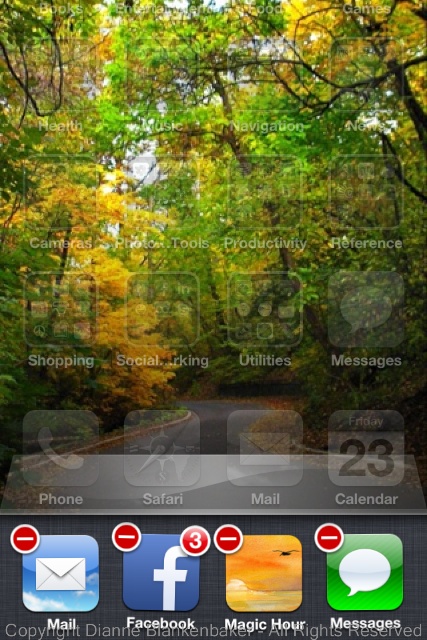
Your Assignment:  Double-click the Home button at the bottom of your phone.  The screen display will slide upwards and expose all the apps you currently have running:

SunsetReflection2 3

Hold your finger on one of the apps until all the apps start wiggling and have a red-and-white “-” on them.

The “-” appears when you hold your finger on a app for a few seconds

Tap the “-” to close all the apps that are running.

When all apps are shut down, this is what you'll see
When all apps are shut down, this is what you’ll see

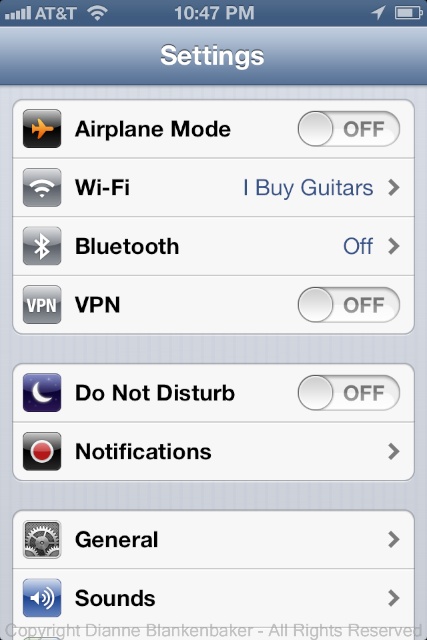
If you’re not familiar with where to turn off bluetooth, etc, go to the “Settings” app.

The settings app icon looks like a gray gear


Check out the Airplane, wifi, and bluetooth settings at the top.

SunsetReflection2 7

Also scroll down to the Privacy settings, tap it and check out the Location Services.

Finally, pick a day when you’re not going to need to take pictures at the end of the day.  Note the time you unplug your phone.  Use your phone normally all day, but don’t charge it.  At the end of the day, if it still has charge, start taking photos.  See how many photos you can take before the phone dies.  This should give you an idea of how important it is to recharge before going out after an average day of use.

Lesson 27: The Wide, Wide World

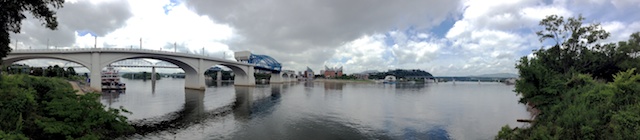
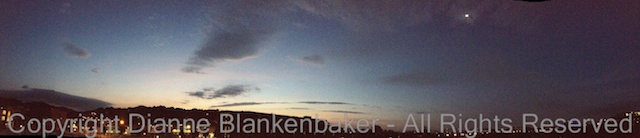
Sometimes a scene presents itself that is so wide, a single frame isn’t enough to capture it.  This is when the Panoramic feature of the iPhone default camera app comes in handy.

When you launch the camera app that comes with the iPhone, you will see an “Options” button at the top of the screen.  Tap that and the “Panorama” option becomes selectable:

IMG_3065

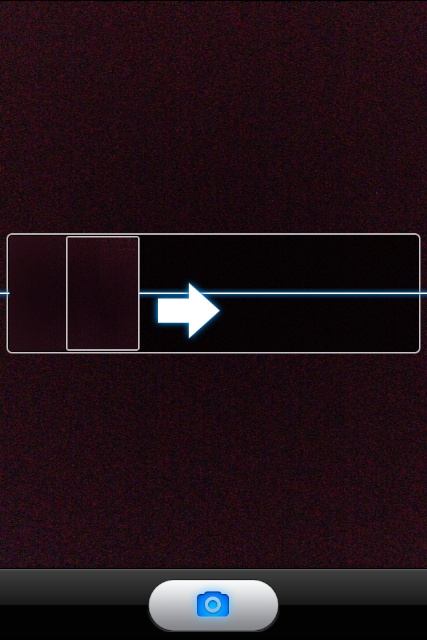
When you select it, a guide appears that will help you keep the phone on course while turning.  There are several tricks to making this work well.

IMG_3067

First, you have to move the phone left to right.  If the thing you want the most in the photo happens to have some really unattractive stuff to its right, you have to guess at where to start the photo so that you can get what you want in the photo and end up with the thing you want the most at the far right.

Second, you have to hold the phone vertically, which I find more difficult than holding the phone horizontally.  Check out Lesson 6 on how to hold the phone securely to help you hold it steady.  The biggest challenge I have with holding the phone during a panoramic shot is not getting my fingers over the lens.  Here’s an example where my finger got in the way:

To avoid this mishap, try putting your right middle finger on the upper right corner, your thumb on the lower right corner, and extending your remaining fingers to keep them out of the way.

Third, you have to position the phone at the far left of the scene you want to create, touch the camera button or push the volume up button.  I find it impossible to use the volume up button in this position, but perhaps your fingers are more nimble than mine.  Tapping the camera button can cause the phone to shift dramatically, so it requires some finger yoga in any case.

Fourth, if your scene has a lot of bright and dark areas, getting a good exposure can be tricky.  This is particularly true if the left side of the scene is significantly lighter or darker than the right.  You can set the exposure at the beginning, but end up with over or under exposed areas by the time you get to the end of the scene.  Here is an example where my sky got overexposed because the building I started with was significantly darker:

Finally, keeping the phone in the same plane as you turn can be tricky.  I find it helps to practice.  Plan to take multiple photos of the same scene to get what you want.  When you figure out where to start your photo, stand facing what will be the center with your feet pointing that direction.  Then, turn your upper body to the left without moving your lower body.  Start the photo and then twist around as you move the phone across the scene to minimize getting off track.  The iPhone will show you when you’re getting too far off course–watch the arrow and try to keep it on the center line.


The arrow indicates the phone is being tipped--just pause and adjust to get back on track
The arrow indicates the phone is being tipped–just pause and adjust to get back on track

Now that you’ve mastered the basic techniques, some other things to consider are the effects on the scene itself.  I personally, being easily amused, enjoy bending railings and other straight lines.  For example, by including the railing on a bridge in both the left and right sides of the photo, the bridge gets bent into a giant “U” shape:

Similarly, standing out on a small peninsula and taking a panoramic of the relatively straight shore line, the Riviera becomes U shaped as well:

This also works at overlooks:

In general, bear in mind that you are taking a picture in a half circle in a 3-dimensional space.  Those 3 dimensions become 2 in the photo and it can create some interesting distortions.

Your Assignment:  Try taking a panoramic photo of things you wouldn’t normally think of as calling for panoramic treatment.  Maybe a panoramic of your street will create new next door neighbors.  Maybe a tall tree panned vertically will have a new twist.  Or maybe you can just take a panoramic of the sky.  If you have the opportunity, also try this technique in a wide-open scene like a view from an overlook, the top of a mountain, or some other high place that provides vast visibility.  Did you get anything really fun?

Lesson 26: The iPhone and Wildlife

One of the challenges with the iPhone is trying to capture photos of wildlife where you can actually see the wildlife in question.  In yesterday’s lesson, we looked at using the photojojo telephoto lens to get 8 to 12x magnification optically.  You might think this is a really great answer for wildlife.

Using the telephoto attachment for wildlife shooting introduces several additional challenges.  First, it’s hard to hold the phone steady enough to get a photo of a wild animal with the telephoto lens attached.  Any shake is magnified proportionally to the magnification of the lens.  Second, you have to focus manually, which can be very tricky if you’re trying to follow a moving animal.  And third, if you don’t have the attachment already on the phone, there’s a good chance the wildlife will have left by the time you get it attached.

I am continuing to experiment and research what other people are doing for wildlife, but so far, I’ve found two patterns:  they are shooting subjects they can get up close to without the subject moving.  Or, the subject is really big.  Like buffalo and moose big.

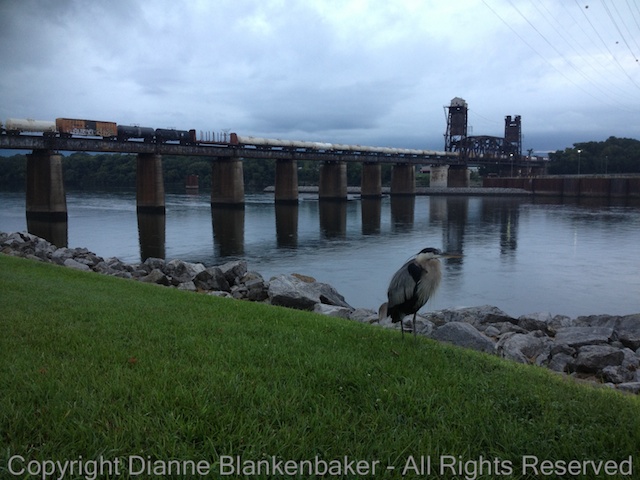
This morning, I managed to sneak up on a Great Blue Heron who was hanging out by the side of a bike path that runs along the Tennessee River.  The secret to sneaking up on a heron is to start by getting as close as possible on your bike.

For heron who hang out by bike paths, they are so used to bikes going by that they assume you’re not a threat when you’re on one.  Once you’re off your bike, don’t look at the heron.  Get your iPhone unlocked and the app of your choice ready to go.  Walk sideways or backwards towards the heron, turning just enough to get the framing you want and snap.  Walk closer and snap again.  Keep this up until the heron starts to look nervous.  Then, back away.  By the way, heron are known for stabbing at people’s eyes with their incredibly sharp beaks when threatened, so keep your eyes well out of reach!

The heron I approached this morning was pretty patient.  I managed to try two different films in Hipstamatic with the same lens (Tinto 1884) we used in lesson 24 as well as the Camera Awesome app.  By the time he started looking nervous, I was within 10 feet (and wishing I had eye protection).

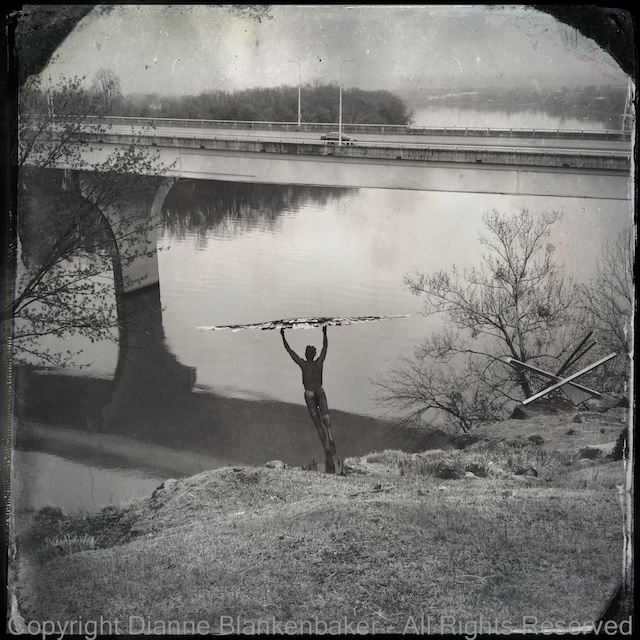
I chose the Tinto 1884 lens because I wanted the blurred effect that helps isolate the subject.  I started with the D-type tintype film because I like the look with the bridge in the background.  However, because you can’t select the focus point with that film, the heron came out blurry unless I nearly centered the heron, which just didn’t create a pleasing composition:

By switching to the Ina’s 1969 film, I was able to select the focus and get a better composition.  To select the focus in Hipstamatic, place your finger on the screen where you want to focus and hold it there for a second.  If you look closely, you’ll see a motion in the viewfinder that simulates the turning of a lens to focus.  Don’t tap–if you tap, it takes a picture.

Compare the photo on the left, taken with the D-type film that doesn’t allow for focus selection, to the photo on the right, where I was able to select the focus:

As you can see, while the D-type film may create an interesting effect for the scene, the mis-placed focus makes it less pleasing over all than the version using Ina’s 1969 film with the heron in focus.

Finally, here’s the photo I took with the Camera Awesome app (no editing):

Camera Awesome
Camera Awesome

Not bad for an iPhone in low light!

Your Assignment:  Go to a local park that has a body of water.  There are bound to be frogs, water birds, turtles, and spiders.  Water birds are far easier than song birds, by the way.  They are usually much larger and they like to sit still for endless periods of time because they’re used to watching for fish.

Try sneaking up on one, taking photos as you work your way closer.  How close do you have to get for the photo to work?  How big was your subject?  If you spot any turtles, these are great subjects as well–they move slowly if at all.  Spiders can also make great subjects, but we’ll be talking more about those in a later lesson when we use the photojojo macro attachment mentioned in yesterday’s assignment.  You might also try getting photos with your telephoto attachment if you bought one.  Were you able to get interesting photos with visible wildlife?  Since the iPhone lens is wide angle, you’ll want to apply everything you’ve learned about inclusion and exclusion to make your photo as interesting as possible.  Did you get anything really good?

Lesson 25: Surprise! It’s Telephoto

Today’s lesson is a surprise lesson.  A surprise to me, that is.  I wasn’t planning on doing a lesson on attachments for your iPhone for a couple of weeks, but the opportunity presented itself with a full moonrise.  I am a fan of shooting the full moon rising over the horizon.  The iPhone is not particularly great at achieving good moon shots, largely because its built-in lens is very wide and getting good shots of the moon requires zooming in.

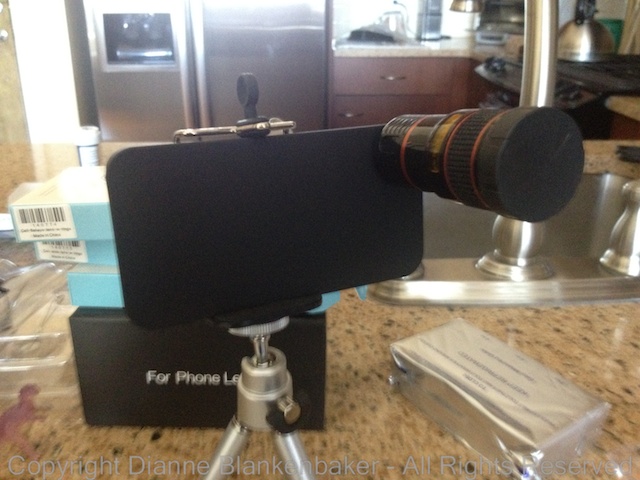
Since the iPhone cannot zoom in optically (only digitally, which will degrade your photos), some very clever people have come up with external attachments that go over your lens to give it some zoom (or should I say “zoom, zoom”?).  Photojojo.com carries such attachments at pretty remarkable prices.  The telephoto attachment comes with a case and mini-tripod for your phone for $35.  You can order it here if you’re interested.

While it’s a pretty ridiculous looking contraption, it fits in your pocket, which is hard to argue with.

This is what it looks like in its tripod:

Photojojo 8x telephoto attachment for iPhone 4S

You put the phone in the case, screw the lens into the case, and voila, you have 8x the focal length for an iPhone 4/4s and 12x the zoom for an iPhone 5.  Pretty cool.  While this will not achieve the same quality of photograph that you get with a high-end DSLR and telephoto lens securely clamped into a high-quality tripod, it’s a $35 attachment that fits in your pocket.  Compare that to the $5000 you could easily spend on a DSLR, lens, and tripod that you then have to lug around.  Once again, pretty hard to argue with that.  (Although, you won’t get the workout you’d get with the DSLR arrangement.)

To take pictures of the moon, you’ll want to use the tripod and have a stable place to set it where your phone will not, say, fall off a balcony and smash to pieces in the event the tripod tips over.  The tripod is not the most stable thing I’ve ever used, but hey, it also fits in your (back) pocket.

The lens requires manually focusing–your iPhone cannot focus automatically for you with the lens attached.  If you use glasses for reading, make sure you have them!  It really sucks to take a bunch of photos and then see them on a big screen and realize they’re all out of focus.

One of the effects of the lens attachment is called “vignetting.”  This means there may be some dark areas around the corners and edges of your photo.  You can crop the photo after you take it to both get some more zoom and get rid of the vignetting if you don’t like it.  Some people like it just fine–in fact, many photo editing tools include an option to add vignetting to a photo, so that’s another option.

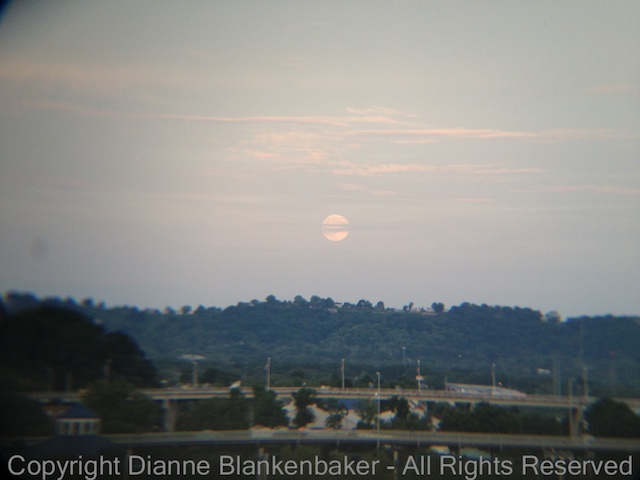
Here’s what my original image looked like using the Camera Awesome app with the Photojojo 8x telephoto lens with the iPhone 4S:

Original

I did some adjusting to make the colors look more like what I saw and cropped to put the moon in the middle of the frame, eliminate the vignetting, and get a little more detail of the moon:

IMG_3039

side-by-side:

While I didn’t get some of the detail I wanted, it’s a far better photo of the moon than I’ve ever gotten with the naked iPhone.  Here’s an example I took a while back that includes the moon–it looks more like a big star without the telephoto attachment:

Your Assignment:  Decide if you are willing to spend $35 for an attachment you may end up not using much.  If so, go to Photojojo and order the telephoto lens.  While you’re there, you may want to consider ordering another set of attachment lenses that I’ll be doing lessons on in the next couple of weeks.  That set includes a wide angle, macro, 2x telephoto, and fisheye attachment for $45.  It’s a fun set of attachments, but now we’re talking $80, which is a pretty big investment for iPhone photos.  If you don’t want to spend the dough, don’t worry.

Whether you decide to order the attachments or not, check the time of the moonrise in your location.  Here’s a website that will help.  Assuming the night is clear enough, watch for the moon.  It may be late if there are hills, mountains, or buildings between you and your view of the horizon.  Watch carefully, sometimes haze at the horizon will prevent the moon from being visible until it gets a little higher in the sky.  It’s also harder to spot when moonrise is before sunset–the light of the moon may not be bright enough.

Once you spot the moon, try taking some photos of it over the landscape with your naked iPhone.  Try zooming in using two fingers and pulling them apart.  Notice the difference in the fuzziness in your image and the speckles that appear when you zoom in this way.  If you do get the telephoto attachment, try this again when the attachment arrives and compare.

Lesson 24: Using Hipstamatic to Include and Exclude

In yesterday’s lesson, we talked about making choices to include or exclude different parts of a scene.  I showed you some examples that were all shot vertically and talked about the fact that this in itself is an act of exclusion and inclusion.

Now, I’d like to continue that lesson in the context of an app we downloaded several lessons ago, Hipstamatic.  We’re going to use a lens from an add-on pack, the Tintype pack.  It includes both C-type and D-type film along with the Tinto 1884 lens, which is the one we’ll be using.  For details on changing lenses and making purchases, see Lesson 13.

Hipstamatic introduces a couple of interesting choices in the context of inclusion and exclusion.  First, the frame is square.  It doesn’t matter if you turn your phone horizontally or vertically, you get the same stuff in the frame (believe me, I forget this almost every time I launch Hipstamatic and try turning the phone until the realization that it is still a square hits me, usually resulting in me smacking myself in the forehead for my stupidity).

Having a square frame makes a considerable difference in how you visualize your subject when it comes to inclusion and exclusion.  There is something totally different about taking a square picture over taking a rectangular one–the 1-to-1 proportion changes the balance of the photo and cuts things out that you might include in a rectangle.  If you’ve started seeing the world in a rectangle, it’s a great time to get out Hipstamatic and try shooting square.

Hipstamatic also introduces some unique effects on the photos that can include and exclude by where the eye is drawn.  For example, the eye is drawn to sharply focused areas in the photo.  Compare these two photos:

Notice that in one, my husband is sharply in focus while in the other, my dog is.  This dramatically changes what the photo is about even though both photos are otherwise quite similar.  To create this largely out-of-focus look, I used the Tinto 1884 lens.  One of the challenges of using this with the D-Type film shown is that you can’t select where to focus.  If you tap the screen, it takes a photo.  This makes it a bit of a trial and error game to get what you want in focus.  Based on testing with the Tinto 1884 lens, it seems that about the center of the frame will be in focus if there are no recognizable faces (notice my husband’s face was covered by the wind blowing his hair in the second photo).

However, take a look at these two examples, also using the Tinto 1884 lens:

Notice how in one, the rock in the background is sharp while in the other, the rock in the foreground is in focus.  The foreground rock is not in the center of the frame–however, if you squint, you can find a “face” in the pattern in the rock.  Ironically, facial recognition does not work for dogs even though it seems to work for rocks.

My advice, take several photos and check what is in focus.  Changing the angle you’re holding the camera to the subject may help Hipstamatic focus where you want–refer to the earlier lesson on holding the phone square (although you may need to do the opposite to get the focus you want).  If you are taking a portrait of a human, the facial recognition will work quite well as long as the human is somewhere near the center of the frame.

Your Assignment:  Pick a subject that you’ve taken photos of before using a rectangular frame.  Consider how the square shape of Hipstamatic affects what you can include in the photo.  Try different compositions to see what works best in the square shape.  If you have purchased the Tinto 1884 lens, try this lens to see what you get in focus and what you don’t.  Are you able to control what is included in the photo by the focus?

Lesson 23: Inclusion and Exclusion

Continuing on yesterday’s theme, we’re going to talk a bit more about what “filling the frame” really means.  This lesson applies to any camera.

When you hear people talk about “filling the frame,” it’s a little confusing because, of course, the frame is always full when you take a picture.  It can be full of the fabric on the inside of your back pocket if you happen to be bad about sticking your phone into your pocket with a camera app still running.  The frame can be full of sky, ground, sea, people, and/or miscellaneous stuff you never noticed when you were taking the picture.

One of my favorite examples of “stupid vacation photos” from my personal collection is a photo I took of my husband with a giant statue in the background looking like it’s sprouting out of the top of his head.

When we’re talking about filling the frame with the subject, we’re really talking about excluding anything that distracts from the subject and including anything that adds to it.  While this may be a simple statement, it’s surprisingly difficult to achieve.  Since we talked about landmarks in yesterday’s post, let’s talk about what that means when we’re photographing a subject like a large bridge, scenic riverfront, or other expansive views.

As a side note, since this lesson applies to all cameras, I’ve used photos taken with a DSLR camera rather than an iPhone.  This allowed me to reuse photos from an earlier shoot rather than having to go reshoot with the iPhone.

Let’s take a simple example.  We’ll look at 3 photos of the Walnut Street Bridge from under an arch of the Market Street Bridge.  Each one includes and excludes different things, but all 3 have something in common:  they were shot on the vertical.  It’s somewhat unusual to take pictures of bridges vertically–choosing to shoot vertically or horizontally is often the first act of inclusion and exclusion.  By choosing the vertical, I was able to make the sky, water, and ground important elements of the photos but get tight enough to keep the Walnut Street Bridge an important part of my overall composition.

Let’s start with 2 very similar versions.  Both include a portion of the bow of the Delta Queen (a retired paddle boat that is now a floating hotel) peeking around a pillar of the Market Street Bridge in the foreground:

Notice the difference between the two at where the view of the Walnut Street Bridge ends.  The second photo includes about half of the third section whereas the first includes less than a quarter.  This subtle difference makes the second photo slightly more about the Walnut Street Bridge.  However, both photos have the same problem–both the Market Street Bridge in the foreground and the Walnut Street Bridge in the background are awkwardly cut-off in the middle of a symmetrical shape.

Now, here is a 3rd similar image next to the first two:

Notice what’s excluded from this photo compared to the first two.  The Delta Queen is gone.  The first vertical support on the Market Street Bridge has disappeared.  Notice what’s included.  The far end of the Market St Bridge arch is now in the frame.  An extra light also appears on top of the bridge.  We now see all of the Walnut St Bridge that is visible under the arch.  We even see part of a second arch in the Market Street Bridge.  Because the end of the first arch is fully in the frame, but just barely, the point where the foreground bridge is cut off feels less awkward to me.

In the process of changing what was included and excluded, I also changed my angle to the bridge.  This creates a nicer diagonal that draws the eye into the image.  You might also notice how different the lighting looks in the different photos.  The sun was shifting through cloud coverage at sunset when these were taken, so there were some unusual and interesting shadows to work with.

I prefer the third photo.  I might have liked it better if the first vertical support in the Walnut Street Bridge were fully visible, but, in general, I like the way the structures are cut off in this one better.  I also prefer the angle of the bridge, and the simplification of the scene by removing the Delta Queen.

Your Assignment:  Take a large subject like a bridge and try different approaches to what you include vs exclude.  Pay attention to the architectural shapes in the frame and where they are getting cut-off.  Try different angles to see if you can find a way to cut-off those shapes in a way that is visually pleasing.  Particularly look at the edges of your frame as you decide what to include and exclude, but don’t forget the rule of thirds.  This is usually a great rule to use for this kind of photo.  And, of course, never forget rule 1–there are no rules.  You may find you can create an abstract-looking photo by cutting off a structure very awkwardly.  Sometimes that can be fun, too.

Lesson 22: People and Landmarks

Today, we’re going to switch gears and revisit an earlier lesson on filling the frame.  This lesson applies to any camera.

In lesson 3, we talked about filling the frame with your subject.  But what do you do when you have two subjects and one is very large while the other is very small?  This is a classic dilemma that most people face when on vacation.  You’re at the grand canyon and you want a beautiful sweeping view of the canyon but you also want to have the people with you in the photo.  What to do?

How many times have you seen photos from someone’s vacation (and perhaps your own) that look like this:

This is the Walnut Street Bridge in Chattanooga, Tennessee.  It’s an extremely popular subject for photographers and tourists alike.  To get this example, I accosted a young couple visiting and stood where the boyfriend was standing to take about the same photo he took.

Since I was interrupting perfect strangers in the middle of their photo session, instead of asking the girlfriend to move to where I wanted her, I moved to where I could at least give you an idea of how to place people in the frame.  Sorry about that–I’ll be a little pushier next time.  🙂

By moving so the girl was close to the camera and off to the side of the landmark, I was able to get a much better photo of her and keep the bridge in the photo as well.  Ideally, I would have framed the bridge better and then placed her in the frame so I had a better photo all the way around, but, again, I was trying to minimize my disruption of their evening.

As a side note, this photo was taken at 6:37PM on the West side of the bridge, providing good lighting for both the bridge and the person (see lesson 17).

Here’s what I got by moving up close to the girlfriend:

Ideally, I would have used the framing of the bridge in the first photo and placed the girlfriend here:

Compare the two photos side-by-side.  Can you see how placing the person close to the camera can make the photo far more effective for both subjects?

Your Assignment:  If you aren’t going to be at an interesting landmark with a group of people for a while, you can still practice.  Try using a big building as the landmark.  Place a friend, family member, or even a large stuffed animal in front of the larger subject and try standing back and shooting.  Now place the person or thing you’re using as a model close to where you’re standing and to one side of the big subject.  What positioning makes for the best of both subjects?  Notice the lighting that you get while you’re at it.  Can you also adjust the position/angle to get the best lighting?