Lesson 11: The Rule of Symmetry

Back in lesson 2, we talked about the rule of thirds.  I showed you how to turn on the rule of thirds grid in your iPhone and gave some examples of how images can be improved by applying this rule.  Today, we’re going to talk about another rule, the rule of symmetry.

The rule of symmetry can be stated as:  if what you’re shooting looks symmetrical, don’t mess with that.  Often, subjects like architectural structures, moons, subjects with reflections in water, and anything round look better when they are more or less centered in the frame.  Sometimes, people do things that make great symmetrical photos as well. 

I pulled out a few examples from photos I’ve shot in the past.  I added an example that used a DSLR just to make the point.

In this example, I lined up the moon right on the center vertical line of the image and allowed the shapes of the bridge to create a nearly symmetrical image.  It bugs me that the bridge elements are not identical on either side, but that’s because each section of the bridge is progressively larger.  To make it symmetrical, I’d have to shoot at an angle (which might be worth trying).   Click on the image to enlarge. 

symmetry.001

In the next example, this is a pretty classic way of doing symmetry.  I was on a business trip and took a quick photo of a road leading to an arched entrance to a large courtyard in Madrid.  This is an iPhone photo taken at the peak of the afternoon sun, creating some very bright areas in the photo, but it is nearly symmetrical.

symmetry.002

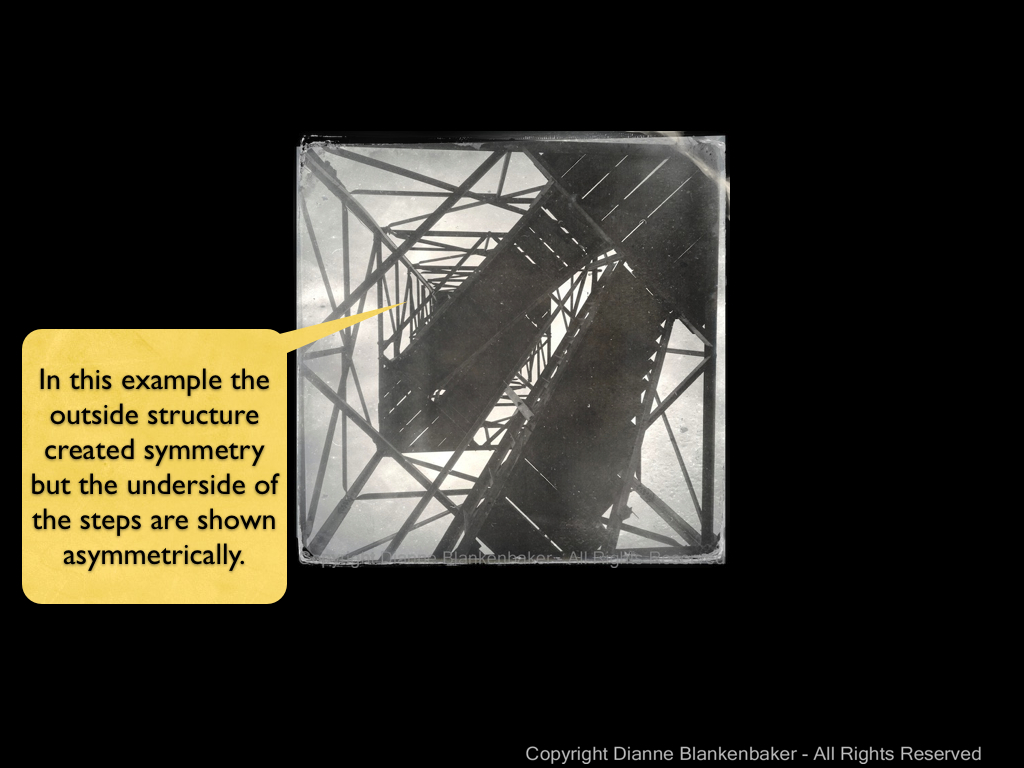
The next example shows a photo taken by laying back on some steps that lead up a fire tower in a park.  The outside frame of the structure is quite symmetrical, but the stairs add a slightly off-balancing element.
symmetry.003

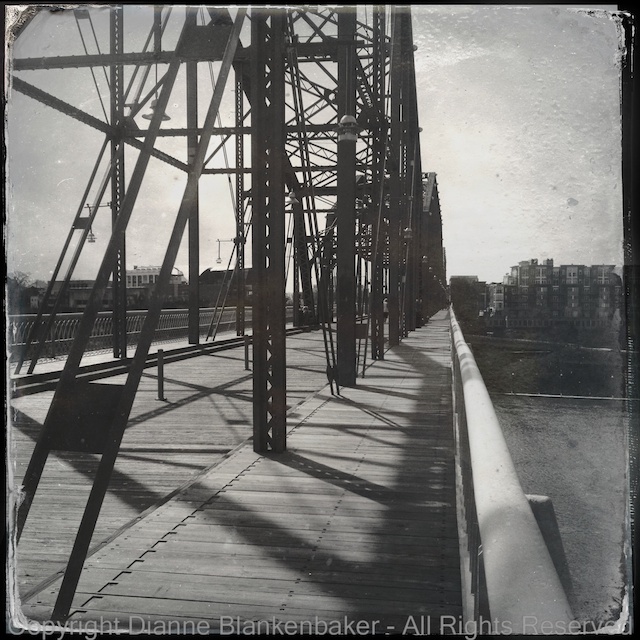
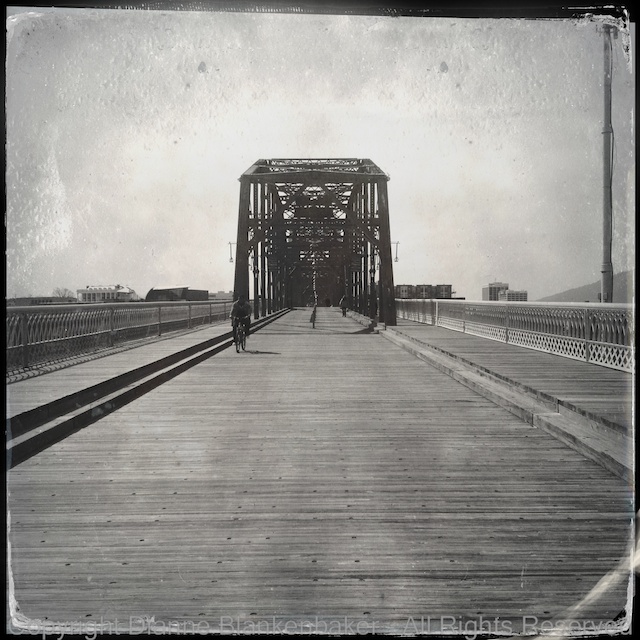
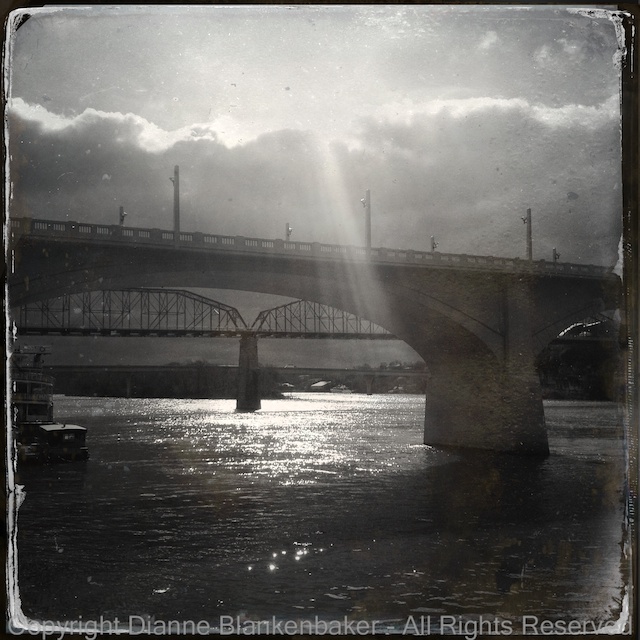
Finally, in this image, I unconsciously applied a slightly revised rule of thirds and the rule of symmetry.  The bridge is at about the top grid line for the rule of thirds, but the entire subject is centered on the vertical center of the photo.  This helps capture the uphill climb to the bridge as well as draws the eye more effectively to the bridge itself.

symmetry.004

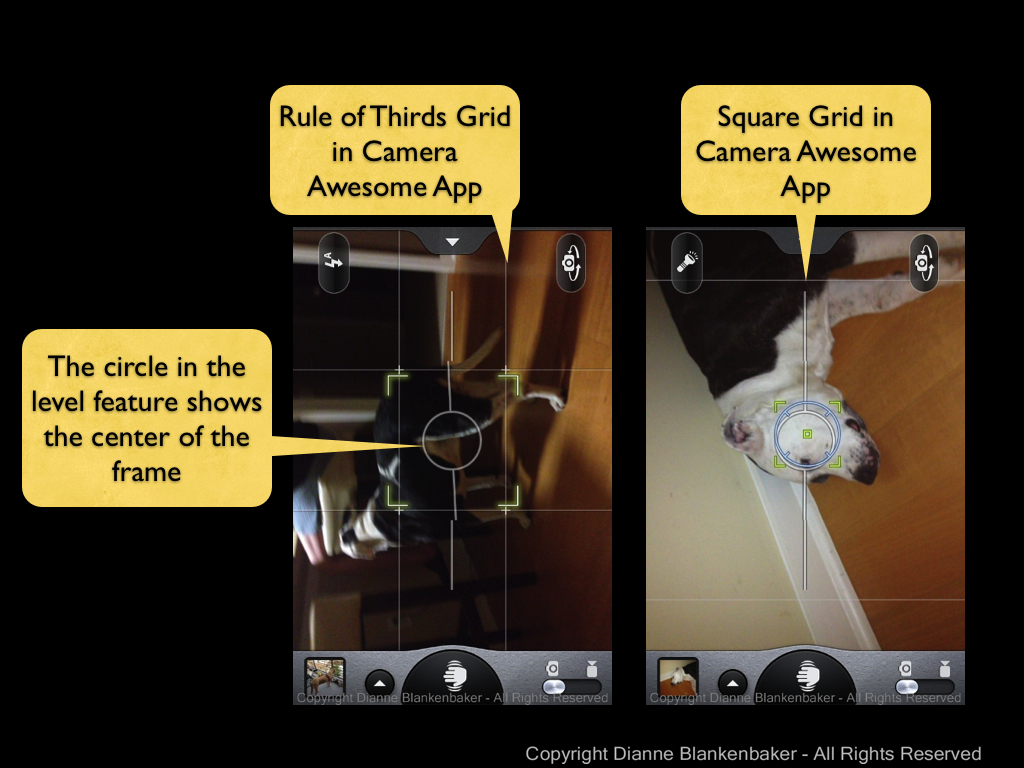
To frame a shot symmetrically, I just leave the rule of thirds grid on.  However, if you’re using the Camera Awesome app, you can also choose a square grid, which can be helpful if you’re planning to crop the image to a square later or if it just helps you predict whether you’re image will be symmetrical or not.  To select the guidelines you want to display, just tap the tab at the top of the screen.  A “drawer” of options slides out and you can choose what you want to use.  We’ll stick the rule of thirds and square options right now.

IMG_2811

If you also took lesson 7, you probably have your level turned on in the Camera Awesome app.  The center circle for the level also indicates the center of your frame, which is another way to determine symmetry.
symmetry.005

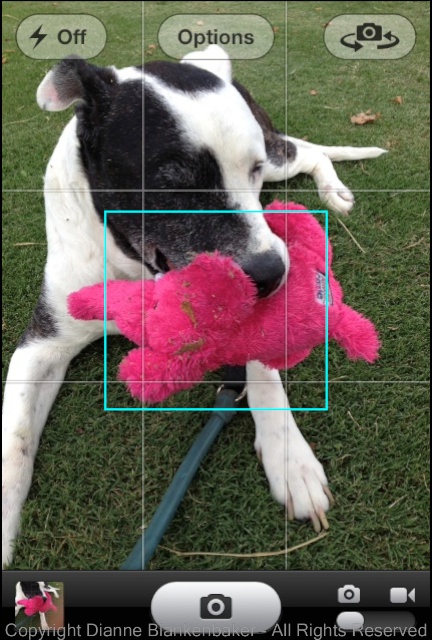
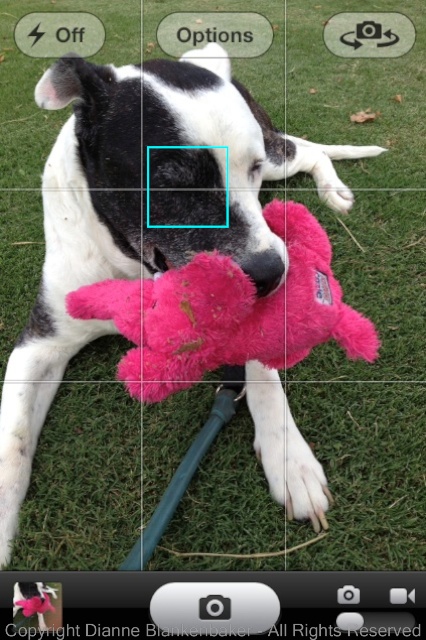
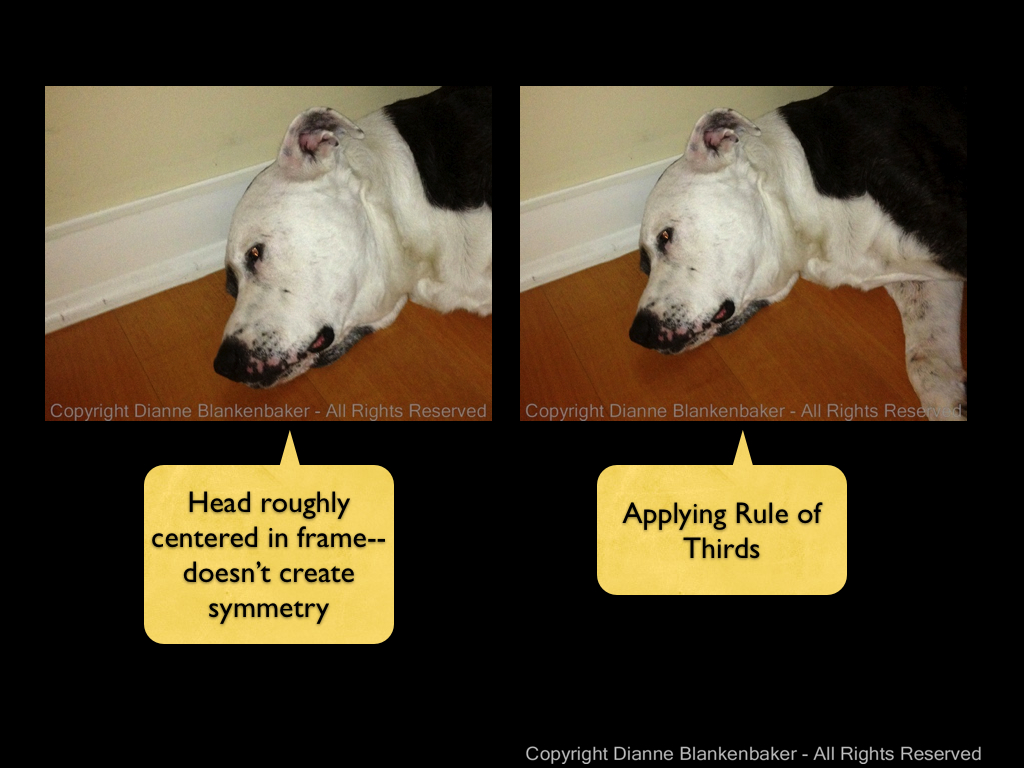
Now, I just want to show one example of what happens when you try to treat a non-symmetrical subject like it’s symmetrical.  My dog is not symmetrical (at least not a this angle).  When I try to create symmetry with his head by taking a picture with his head in the middle, I don’t actually get any symmetry in the image at all.  From this angle, he’s all rule of thirds.
symmetry.006

I wanted to show how my dog can look symmetrical if photographered from head on, but my dog wasn’t particularly enthusiastic about modeling for me tonight.


Your Assignment:  Look for symmetry around you. Taking a photograph up a flight of steps, head on to a person or pet, straight at a doorway, or centered on a round flower will all create symmetry.  Try different subjects that have their own symmetry to them and see which ones you particularly like shot symmetrically.  Try combining symmetry with the rule of thirds and see what you get.  What kinds of subjects did you come up with that work well symmetrically?

Lesson 10: Taking Stock

The inspiration for these lessons, my best friend Gina, reports that her photos are getting worse instead of better.  This is a common experience–there are many reasons for this phenomena:

  1. You are developing an eye and you are seeing more of the shortcomings of your photos than you did in the past.  A photo that you thought was the best photo ever suddenly looks flawed with new found knowledge that influences your taste.  You might look back at the photos you selected in Lesson 1 to see if you see flaws in them you didn’t notice when you selected them.
  2. You are learning new skills that take time to get comfortable with.  A certain amount of physical dexterity is required to hold an iPhone level and stable while you choose focus and exposure options and click the button to take the photo.  You may not have developed the fine motor skills required to do this well.  You are also learning new things to think about when you set up to take a photo.  It can be confusing to have to decide which app to choose, how to apply the rule of thirds, think about holding the iPhone with good form, and decide how to set exposure and focus.
  3. In Lesson 1, I told you there were no rules.  But in the subsequent lessons, I introduced a series of “rules.”  When we are young and learning our language for the first time, we lack the experience to know when a new rule doesn’t apply.  For example, children often add “-ed” to the end of words inappropriately when they first start acquiring the skill of forming the past tense in English:  “I goed to the store with Mommy.”  Similarly, when you are learning a new rule, it’s hard to judge when to make exceptions.
  4. If you are dutifully doing the assignments at the end of each exercise, you are probably photographing whatever is most convenient to complete the exercise.  How interesting photos are is largely dependent on the subject you’re photographing.  Although we will eventually learn how to make seemingly uninteresting things interesting, if you look back at the photos you picked in Lesson 1, you may find that they are of particularly interesting places or people.  It’s hard to make up for that with basic skills.
  5. The 9 lessons so far are not enough to take your photos from ordinary to extraordinary.  I suggest looking at the example photos I used in the lessons (included in this post for your convenience).  You might notice that none of them appear in my iPhonography Gallery page.  This is because I don’t like them.  They are not great photos–they are exercises.  We have not yet gotten to lessons that expose the power of using an iPhone as a camera.  That power is not in its ability to capture great details or strong contrasts.  The power of the iPhone is in the range of applications available to easily do really creative things with the photos you take.  Be patient–we’ll get to those lessons.
  6. In digital photography, the equivalent of developing film is called post-processing.  This means after the photo is taken, it’s adjusted using software to make it look better.  We haven’t gotten to using any of the tools available for adjusting photos, so you are looking at photos that are merely “negatives.”  We’ll get to post-processing–just know that your photos aren’t really done yet.

Your Assignment:  Take a look at the photos you created as part of each lesson.  Take stock of what you learned from each exercise.  Do you have better control of where you focus?  Are you framing your subjects in new ways?  Are you better able to control the exposure you get?  Congratulate yourself for what you’ve learned, no matter what the photos look like.

Lesson 9: Combining Two Exposures into One Photo

Yesterday we addressed how you can use Camera Awesome to set the exposure and focus separately in your iPhone.  The advantage is being able to get a better overall exposure while still keeping the photo sharp where you want it.

Today, we’re going to learn another technique for getting the exposure you want that’s particularly useful when photographing a landscape scene like yesterday’s where there is a bright sky over a dark landscape.

We’re also going to download a second app called Pro HDR.  Good news for non-iPhone users–it’s also available for Android!  The bad news for all is that it’s not a free app.  It costs $1.99, so you’ll have to decide if you want to spend the money to experiment with it for today’s lesson or not.  If not, you can try with the iPhone’s default camera app, which has an HDR setting in the Options menu.  I do not use this setting because I haven’t found it to work well for me, but perhaps you will have better luck.

At the risk of getting too technical, HDR stands for High Dynamic Range.  It is not related to High Definition technology.  What the Pro HDR app does is take one photo exposed for the darkest areas of the scene and a second photo for the lightest areas.  Then it automatically combines the two into one image, choosing the best exposure for the different areas in the photo from the two photos and sprinkling in a little magic to make the photo look really good.

Because it’s all automated, it’s very easy to use and doesn’t require knowing anything about how HDR works.  The only thing it requires is that you hold the phone very stable while it does some analysis and then takes the two photos–this can take a while, so make sure you’re using good form holding the phone and in a position you can maintain.

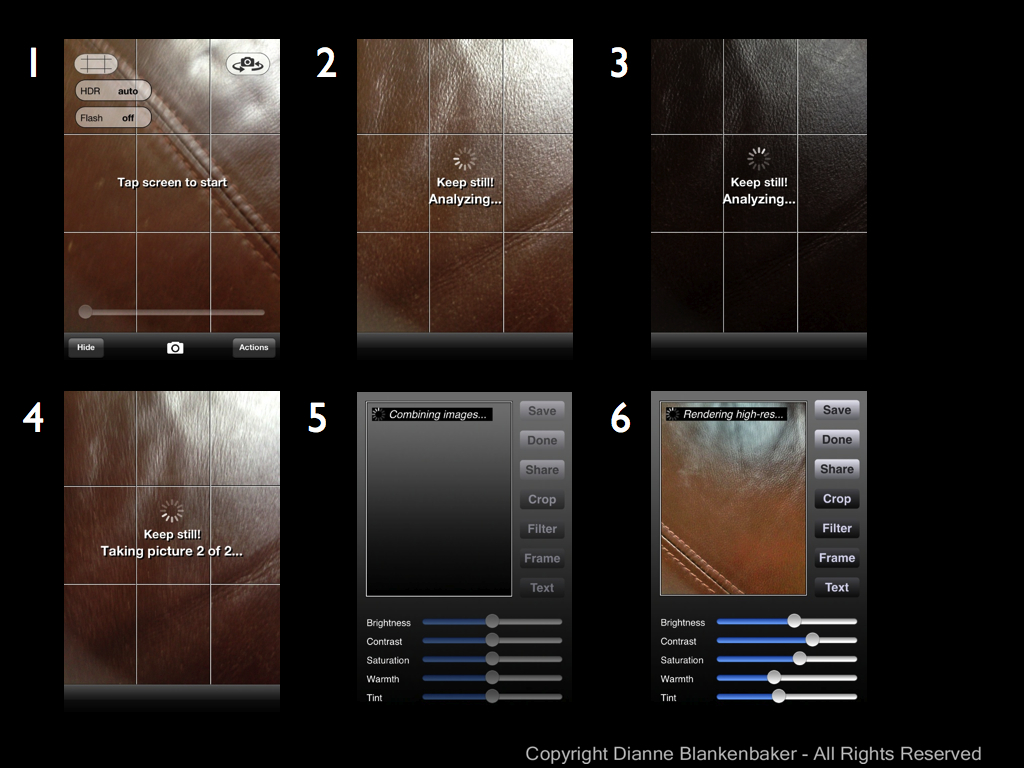
To start the process, you launch the app, frame the scene the way you want and then tap the screen (you can also push the volume up button, but the volume will annoyingly pop–it does still work) to start the process.  Then, you just hold still and watch it do its magic (click to enlarge):

HDR slides.001

When I used this app while at Snooper’s Rock yesterday, these are the two photos it took and the combined image that resulted (click to enlarge):

HDR slides.002

You’ll notice that the combined image has much better exposure for the sky than in the first image and a much better exposure of the trees in than in the second.  It works very nicely for these types of subjects.

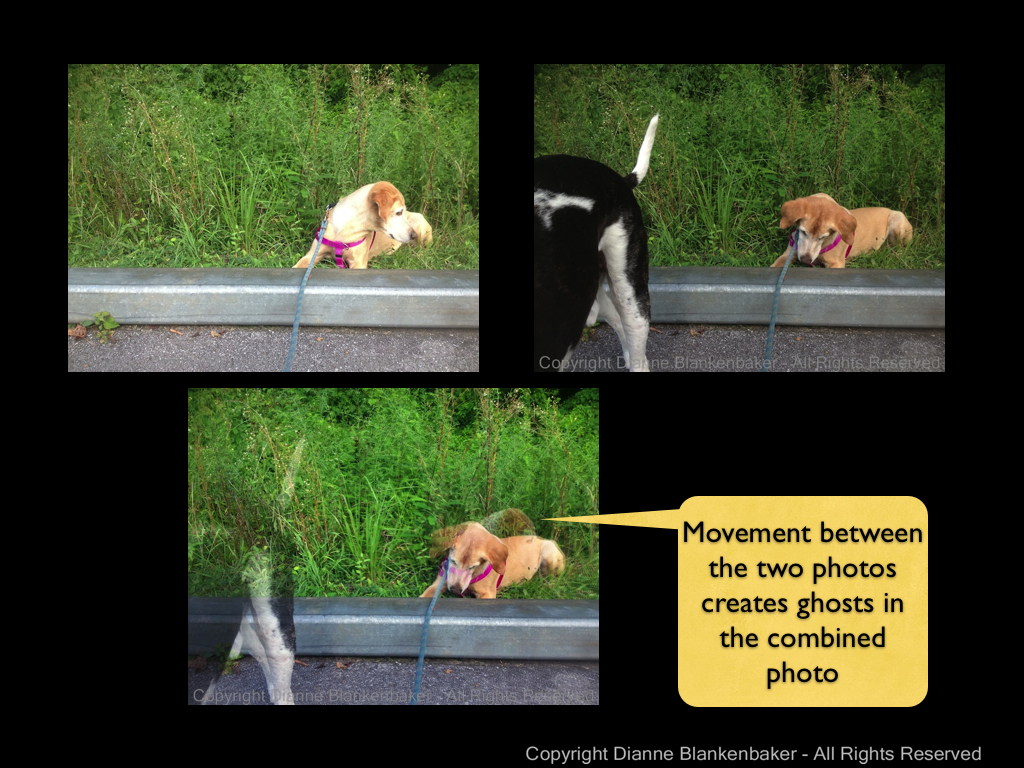
Where this technology doesn’t work so well is when you have people walking in and out of your scene or if your subject is in motion.  Check out this example of my dog’s best bud (and my dog’s tail end):

HDR slides.003

This is always disappointing to me as my black-and-white dog would be much easier to expose using Pro HDR.  However, even though he stood very still in the next image, the motion of his panting was enough to cause his throat to get blurry in the combined image:

HDR slides.004

You’re assignment:  Download Pro HDR (or turn the HDR option on in the iPhone default app).  Choose a scene with both very bright and very dark areas.  Now take a picture with the default app, with the Camera Awesome app using the methods we explored yesterday and the day before, and, finally, using Pro HDR.  Compare the images.  Do you feel like you got your $1.99 worth from the Pro HDR app?

Here’s my example comparing the results from the 3 apps:

comparison of apps.005.005

Bonus Assignment:  See if you can create some really cool ghost images using Pro HDR.  Sometimes this can be a really fun effect.

Lesson 8: Separating Focus from Exposure

In yesterday’s lesson, we downloaded the app Camera Awesome.  If you missed yesterday’s lesson, you might want to download it now.  It’s a free app available from the Apple App Store.

One of the pains of using the default camera app that comes with the iPhone is that you can only pick one spot on your screen to set both the exposure and the focus.  The Camera Awesome app is one of several apps that allows you to pick one spot to set the focus and another spot to set the exposure.

Why is this awesome?  There are many times when the thing you want to be in focus is  darker or lighter than the overall scene and you have to choose between what you want in focus and how you want the image exposed (see lesson 5).  With Camera Awesome, you can focus in one spot and adjust the exposure in another spot so you get a better exposure and still get the focusing point you want.

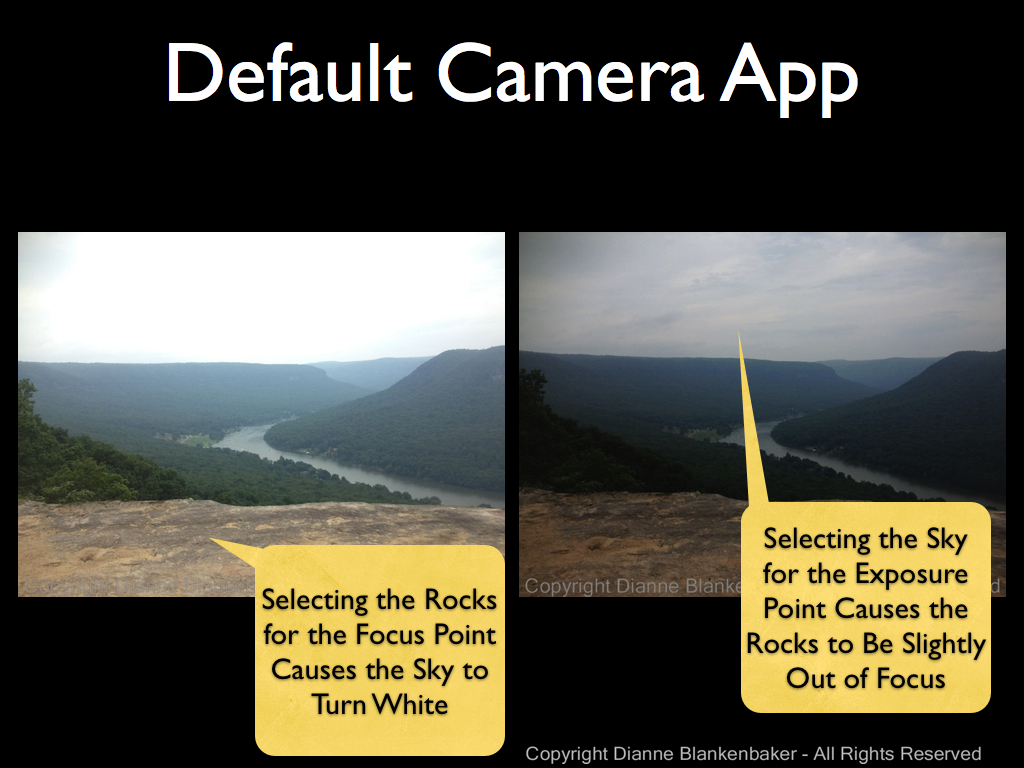
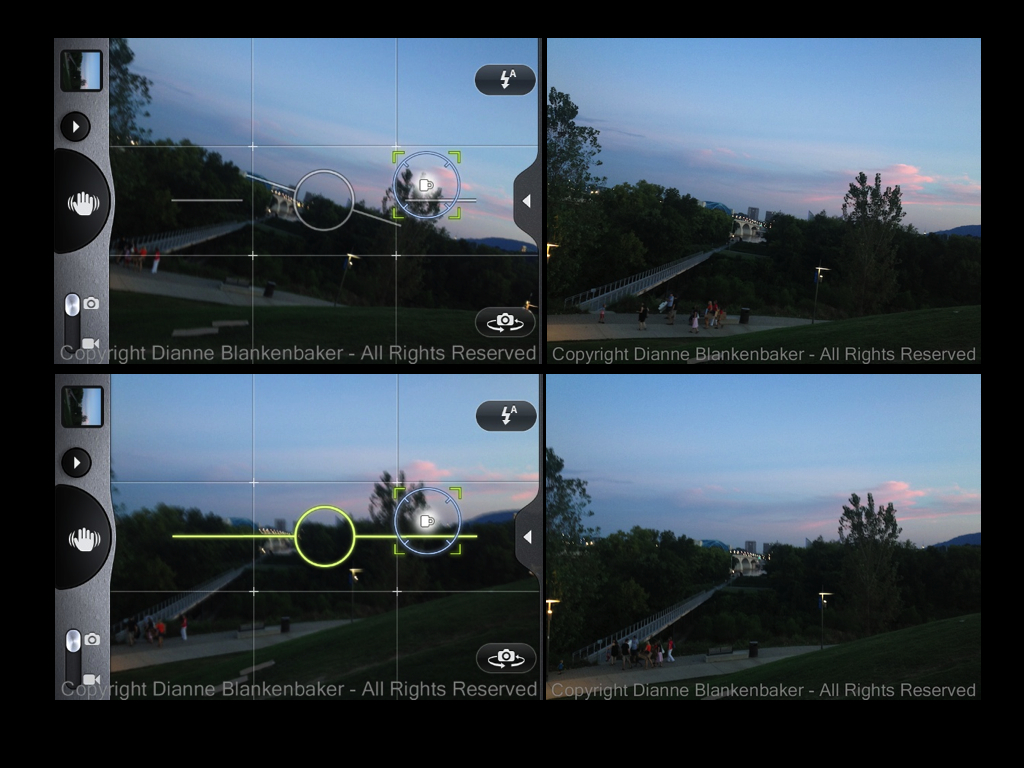
For example, when shooting landscape scenes like the one in the example below (click to enlarge), with the default camera app, if I choose the rock for the focus point, the sky turns white.  If I choose the sky to get a better exposure, the rock is not longer sharp.  I don’t want a blurry foreground and I don’t want a white sky.

Separate Focus and Exposure.001

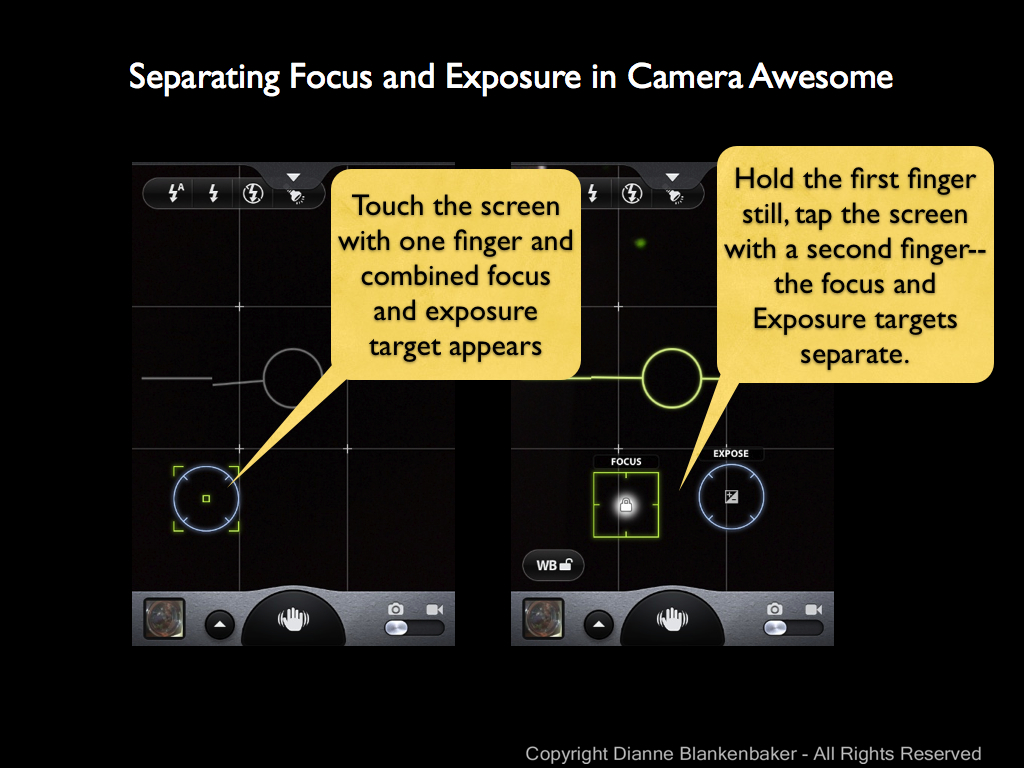
Using the Camera Awesome app, I can touch the screen with one finger and, while keeping that finger still, tap the screen with a second finger to get a green square for focusing and a blue circle for setting exposure. I can move each around with a fingertip to find the best focus point and best exposure point separately.

Separate Focus and Exposure.002

By separating the two functions, I have more choices about how the photo will look.

Separate Focus and Exposure.003

One note I didn’t mention in yesterday’s lesson:  With the Camera Awesome app, the photo is stored inside the app until you tell it to save it to your Camera Roll.  It’s best to choose the images you want to keep and save them to your Camera Roll for future use as soon as you’re done shooting.  That way you won’t end up with hundreds of photos in the app.

Here’s one last example of when separating focus and exposure are important.  I focused on my dog is in the foreground, but found an exposure that keeps details visible in both the dark spot on his face and the sky.

IMG_1956

Your Assignment:  Choose a scene that has some brighter and darker areas where you want to focus on something in the foreground.  Using the default camera app that comes with the iPhone, choose the focus point and take a picture.

Next, open up the Camera Awesome app and practice touching with one finger and tapping with a second finger to get the separated exposure and focus settings to appear.

Focus on the same point you focused on using the default app.  Now slide the exposure around until you get the best exposure for your image.  Take a picture.  Save it to your Camera Roll.  Compare the two images.  Which one do you like better?

Lesson 7: Keep It Level

Today, we’re downloading our first new app!  While there are quite a few iPhone apps to choose from, one of my particular favorites is the SmugMug app formerly called Camera! and currently called Camera Awesome.  I’m sorry to say that it’s not available for other smart phones for those of you without iPhones.

You might want to pause and download the app before you continue.

While we talked about holding the iPhone firmly and square, we didn’t talk about holding  it level.  Sometimes having a crooked photo can really ruin a great image.  This is especially true when shooting skylines, water scenes, and architecture.  Anything the eye expects to be level will usually look pretty off when it’s not–even if you can’t tell when you take the photo.

The iPhone is not easy to hold level.  I seem to come home with crooked photos all the time.  For today’s lesson, we’re going to look at using the level feature in Camera Awesome to help us find level even when it’s hard to tell by eye.

If you open up the Camera Awesome app, there is a little tab at the top of the screen that will slide open like a drawer when you tap it.  In the upper right corner, you’ll see a button to tap that toggles the level on and off on the screen.  Turn the level on so your screen looks like this:

turning on the level.003 (1)

Tap the tab again to close the drawer and now you’re ready to shoot level.  The level will turn green like in the image above when you’re holding the phone perfectly level.

In the example below, I was standing on the side of a hill looking down a slope to a sidewalk at angle to me that leads to a river.  There are lines and curves intersecting everywhere and it was impossible to tell when I was level except for the handy level feature in the Camera Awesome app:

level examples.001

As you can see (click image to enlarge), the scene looks odd when shot at an angle even though I couldn’t tell what was level when I was standing on the hillside.  Sometimes, shooting level isn’t important–and can even be a detriment.  Take a look at the following example (ignoring the fact that my dog wouldn’t hold still):

level examples.002

Your Assignment:  Can you tell which of the two images above was shot level?  I’ll give you a hint–I was surprised when I saw them side-by-side and realized which one was which.  Which one do you like better?

Now, take a walk where you can get a view of the sky or a body of water or really any open landscape view.  Try taking quite a few photos of what you see both level and not level.  Now, turn off the level feature and see if you can shoot level without it.  How’d you do?

Lesson 6: Hold the Phone

One of the things we don’t always think about when we are taking photos is how we’re holding the phone.  Using an iPhone or any small-bodied camera, especially smart phones, creates a challenge around holding the phone straight and still.  This can both create blur and distortion as well as change the framing.  Click image to enlarge:

stability and angle of phone.001 (1)

The “rule of phone” here is to hold the phone as much like a camera as physically possible.  That means holding all 4 corners of the phone firmly.  Use your thumbs on the bottom side.  On the top side, use your left index finger and your right middle finger.  Assuming you have an iPhone 4S or later, keep your right index finger free to press the volume up button to take the photo.  Your finger placement will look like this (click to enlarge):

finger placement.002 (1)

If you turn your phone vertically, you may find it easier to keep your fingers in these positions, but open your unused fingers on your right hand to keep them out of the frame.

Now that you have a good grasp on your phone, look at the screen of your iPhone to frame the subject, use your free index finger to tap the screen to set focus/exposure, and then take a moment to make sure you’re stable and you haven’t messed up your framing in the process.  Then, click the volume-up button to take the photo.

Bonus tip:  if you have a place to set your phone that gives you the framing you want, you can use the volume up button on a headset to take the image, too.  This will ensure your phone is perfectly still and perfectly perpendicular.

Another thing to be aware of is the angle you are holding your phone at.  I sometimes find that I am not quite able to fit my subject in the frame.  When I look at how I am holding my iPhone, I discover I am holding it at an angle to the subject, which makes the space I have to work with vertically more condensed.  Compare these two images (click to enlarge):

stability and angle of phone.002 (1)

I held the phone at the same spot but at two different angles.  Holding the phone straight gave me more vertical space in the frame.  Keeping the phone straight can also help when you are taking photos of objects that are square and you want them to look straight.  As is true with any “rule,” sometimes an angled phone works great.

Your Assignment:  Practice holding your phone like a camera.  Start with the instructions above and try sliding your thumbs closer together or further apart.  Try using different fingers.  Practice setting focus/exposure and clicking the button to see if you can find a comfortable grip that helps you keep the phone steady while you move your free finger around.  You might even try turning the iPhone around so the volume-up button is under your left thumb–especially if you’re left-handed–some people find this easier.

Now take a few images with the phone at a right-angle to the ground.  Without moving, try tilting it forward and taking a photo and then back.  See how it changes what fits in the frame.  Notice if it affects the way the subject looks.

Lesson 5: Exposure

I mentioned in yesterday’s lesson that the iPhone’s default camera app both focuses and sets exposure based on where you tap on your phone’s screen.  Yesterday we talked about focus.  Today we will talk about exposure.

The fact that focus and exposure are tied together in the iPhone app can create some frustrating situations.  In later lessons, we’ll talk about other iPhone apps you can use that separate these two functions, for right now, we’ll stick to the default app.

Let’s take a made-up example.  Let’s say I want a picture of my dog that includes the patio door for some reason.  When I tap my dog on the screen, the iPhone both focuses and sets the correct exposure for my dog, which works reasonably well:

Setting the focus/exposure point using my dog work reasonably well for this image
Dog chosen as focus/exposure point

Now let’s pretend there is something really fascinating about that patio door and I want a picture that exposes the patio door correctly, but also includes my dog.  If I tap on the patio door to get the right exposure for it, this is what I get:

Glass in door focus/exposure point selected

If we could see my dog, we would find that he’s kind of fuzzy in addition to being too dark.

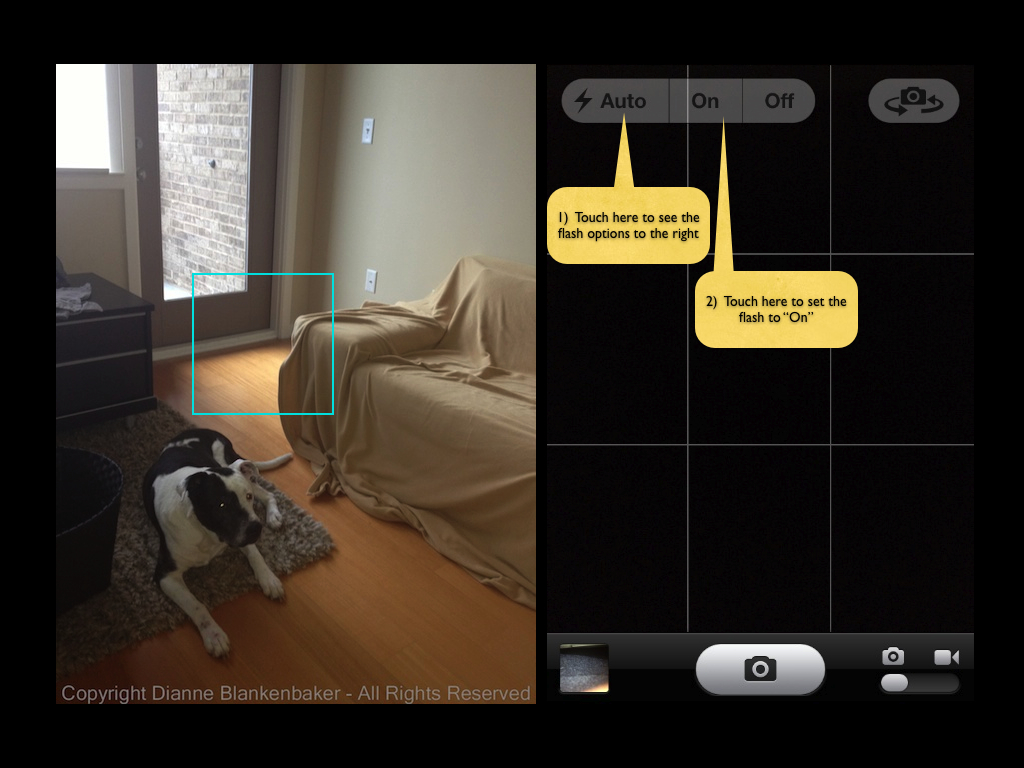
To get both my dog and the door, I can choose a portion of the image that is approximately halfway in between the two and turn on the flash like this:

Choosing a compromise point and turning on the flash

You’ll notice in the image above (click to enlarge) used to show where to focus, the downside of using the flash is that my dog’s eye reflected the light, but we’ll learn how to deal with that later.

As you can see, when the exposure required for a subject causes the rest of the image to be too bright or too dark, this technique can help.  By choosing the place to tap so that it’s between the two extremes, it helps equalize the gap.  If the gap is too big, you can use the built-in flash to help equalize things further.  Note:  the distance the flash will have an effect is limited to very short distances (a few feet).

Your Assignment:  Take a walk outside during the day.  Try taking a photo of a solid subject that has a lot of light behind it.  See if you can find good spot to tap on to get both reasonable exposure and focus.  Try turning on the flash to see if it helps.  For bonus points, try using the rule of thirds in the same photo.

Lesson 4: Focus

Today’s lesson is about focus.  Focus is usually one of the few inescapable rules of good photos.  Although, even as I write that, I think of the photo of Paul Simonon of the Clash smashing his bass on stage.  The photographer, Pennie Smith, reportedly didn’t want the photo to be used because it wasn’t sharply focused.  It graced the cover of the London Calling album anyway and is considered by many to be one of the most iconic photos in rock and roll.

However, the vast majority of the time, photos fail when the subject isn’t sharp.  With the iPhone, sometimes this gets a little tricky, but it’s easily solved.

Let’s say you see something and you pull your phone out of your pocket, launch the camera app and snap a shot as quickly as possible.  Your iPhone camera will decide what the subject is.  Sometimes it’s quite good at this (like people’s faces).  Sometimes it’s not.

To demonstrate this, I’ve lined up 3 things in a row that runs from close to the camera to far from the camera.  To maximize the difference the focus point can make, in the image on the left, I focused on the Cetaphil bottle in the foreground.  In the image on the right, I focused on my dog.  (Click on the image to get a larger view.)

Image on left is sharp on the bottle.  Image on right is sharp on the dog.
Image on left is sharp on the bottle. Image on right is sharp on the dog.

Notice the difference in how sharp the letters on the bottle are and my dog is in the background in the first image versus the second.  If I would have let the iPhone choose where to focus, it would have focused in the middle, resulting in an image with slightly soft focus in both the foreground and the background.  Instead, I can choose which part of the image I want to be sharp.

To choose what you want to focus on, touch the screen on the thing you most want to be sharp.  To demonstrate this, I did a screen capture of the iPhone camera and drew in a square approximating what the focus box looks like.  In this image, this is where the iPhone wanted to focus by default:

The iPhone chose the center of the scene, where the closest object was.

In the next image, I touched the screen to tell the iPhone to focus on my dog’s eye.  That made the elephant slightly softer in focus, but the elephant and my dog’s eye are close enough together that it’s hard to see the difference except under magnification.  The key is that my dog is the more important subject, and his eyes are the most important things to have in focus.

By tapping on my dog's eye, I ensured his eyes would be sharp.
By tapping on my dog’s eye, I ensured his eyes would be sharp.

One of the things that can be an advantage with an iPhone or any small-sensor camera is that they tend to keep a lot more things in focus from the front to back of the subject you’re photographing than a bigger, fancier camera.  This is also a disadvantage, but we’ll save that for a later lesson.

As a side note, when you touch the screen to set the focus point, the iPhone default camera app also uses that point to set the exposure.  We’ll talk more about exposure in tomorrow’s lesson.

Your assignment:  Practice taking photos of several different subjects in different settings.  Wait to take the picture until the focusing square appears.  Notice what the iPhone (or other camera) is picking for you.  Take a second photo of each subject and choose what you want to focus on.  Pick the thing that is most important to you to have in focus (hint:  eyes are always a good choice if your subject has them).  Now look at the photos on a large computer screen you can see well.   Take a look at what’s in focus.  Where does the iPhone’s automatic focusing decision work well?  When do you notice a big difference between what it chose and what you chose?

Lesson 3: Fill the Frame

In yesterday’s post we explore the rule of thirds.  Today, we’ll add the second “rule” (remember, rules are only meant to help you understand the choices you can make) of taking better photographs:  fill the frame.

You want your frame to be full of your subject.  Not the stuff around, behind, above, below the subject, just the subject.

To make this easy, let’s say you wanted to take a picture of a dog.  Often, people will take a picture of a dog that looks something like this:

IMG_2619

Let’s look at what’s in the frame.  When you look at this image, you see that I have an ugly blanket draped sloppily over my sofa, there’s a plastic tray on one arm, an outlet partially showing behind the plastic tray, and an awkward corner of an area rug in the lower foreground along with a wood floor.  All of these things distract from my subject, which is my dog.

Even though I applied the rule of thirds by placing the upper-left intersection of the grid (discussed in yesterday’s post) on my dog’s eye, my dog looks like he’s floating in the middle of a bunch of other stuff.

When I apply the rule of filling the frame with the subject, this is what I get:

IMG_2622

There are several things about this image that could be improved, but we’ll save those for later lessons.  In spite of these issues, the sloppy blanket has become a neutral background and there is no question about what the subject of this image is.

Think about it this way:  the first photo would probably be captioned as “dog on a blanket-covered sofa in the living room with his toy,” while the second image would just be captioned, “dog with toy.”  There’s nothing wrong with an image of a dog on a blanket-covered sofa in the living room with his favorite toy unless what you wanted was an image of a dog with his toy.

As a side note, I do not recommend zooming using the iPhone or any other camera that doesn’t have Optical Zoom.  Optical zoom means there is a moving lens that makes the image look closer.  A camera like an iPhone camera has Digital Zoom.  Digital zoom means the magical wizard in your smart phone figures out how to make the image look bigger, but it reduces the resolution of your image, often resulting in something really grainy.  If at all possible, use your feet instead of your fingers when it comes to getting a close up with a smart phone.

Your Assignment:  Pick your favorite subject that’s willing to stay still for a few minutes.  Stand far back and take an image of your subject applying the rule of thirds–don’t worry about what else is in the frame.  Now, step up close, apply the rule of thirds again, fill the frame with your subject, and take a second image.  Remember you have the option to turn your iPhone vertically if that helps.  Which image captures your subject more powerfully?

Lesson 2: The Rule of Thirds

In our last lesson, I explained that rules are just a way of organizing the choices you can make when you take a photo.  The rule of thirds is one of those choices.

The iPhone default camera app can be set to turn a rule of thirds grid on in the Options menu.  Most camera apps and point-and-shoot cameras have this option.  This is what it looks like with the grid on:

iPhone camera with grid on

The grid divides the frame into thirds both horizontally and vertically.  For many subjects, placing the subject so that the most important feature aligns with the intersection of one of these lines can make the subject grab the eye much more effectively.

Here’s an example.  First, in the next image, I’ve centered my dog’s head in the frame:

Subject centered in frame

In the next image, I placed one of the grid intersections on my dog’s left eye:

Rule of thirds grid 3

I chose the lower-left intersection in the grid because it allowed me to get his front legs in the frame as well.

Which one do you like better?
Your Assignment:  Turn the grid on in your camera app or camera if it has it.  If not, you can imagine where the grid would be by guestimating.  Pick a subject that isn’t moving like a flower or a vase or a sleeping dog.  Try photographing it centered in the frame, then try each of the 4 intersections of the rule-of-thirds grid.  Which do you like best?