Lesson 39: 2X

This is not a lesson about shirt sizes.  Instead, we’re continuing our progress using the Photojojo lens attachments with the iPhone.  Yesterday, we looked at the wide angle attachment.  The day before, we used the macro attachment.  Today, let’s take a look at the 2x Telephoto attachment.

This is what it looks like up close:
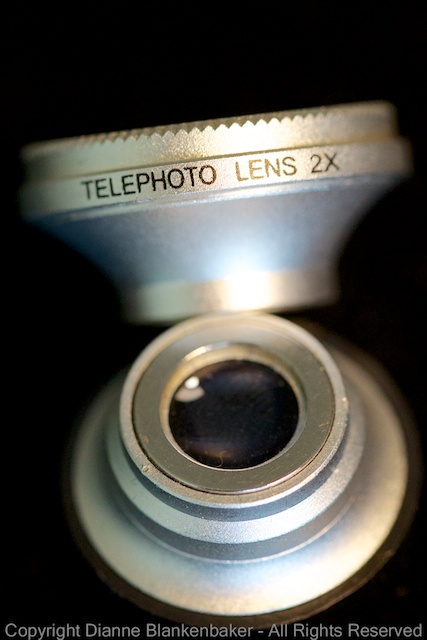
Telephoto Lens

If you either have reading glasses handy or don’t need them, you can see the edge of the lens is labeled “telephoto” to help you tell it apart from the other lenses in the kit.  If you’ve already adhered the metal ring around the built-in lens on your iPhone, the magnet in the 2x Telephoto lens will hold the lens in place on the ring.  If not, refer to the instructions that came with the lens kit for more info.

We previously used a different telephoto lens attachment in Lesson 25 to take pictures of the moon.  That one is 8x telephoto (or 12x for an iPhone 5).  So, you might ask, why would I want 2x if I have 8x (or 12x)?  Well, the answer is simple.  Sometimes, 8x (or 12x) is too much.  Bigger is not always better.

Let’s take the example of being in a park where you want to get a picture of a spider.  The spider is close enough that using the 8x telephoto wouldn’t allow the entire spider to fit in the frame, but far enough away that with no zoom, the spider gets lost in the flowers.

Let’s consider the macro attachment.  You might wonder why you wouldn’t use that for the spider as well.  There are three considerations:  1) How big is the spider?  2) Will the spider hold still while you manipulate the lens inches (or less above it)?  3) Will you scream and throw the phone if the spider suddenly moves while you’re that close?

The 2x zoom gets you in tighter without having to get within grabbing distance.

Here’s a side-by-side comparison of my spider with and without the 2x zoom (uncropped):

And a second one, just for fun.  By the way, in the interest of full disclosure, even with the 2x zoom, I still jumped when the spider suddenly ran to the top of its web.  It’s a big spider.

Your Assignment:

Attach the 2x telephoto lens to your camera.  Look for subjects where you’d like to get closer without getting physically closer.  Notice how 2x sounds like a lot, but really only brings things in slightly closer.  Can you use the 2x telephoto attachment to fill the frame with your subject from further away?  Did you get any great photos of critters that can be hard to get close to like spiders or butterflies?

Lesson 38: Wide Views

In yesterday’s lesson, we used the Photojojo macro lens to take close-ups of small subjects.  Today, we’re going to use the exact same lens but with the wide angle ring in place.  As a reminder, the wide/macro lens has two parts that look like this when separated:

Wide/Macro lens with the Wide ring removed

When the two parts are screwed together, lens looks like this (the one in the middle):


The complete lens kit with the Wide/Macro lens in one piece

If you still have them separated, reattach the wide angle ring for this lesson.  The lens will stick to the metal ring around your iPhone lens via a magnet.  Refer to Lesson 37 for more details about attaching the lens.

The iPhone lens is quite wide to begin with.  It’s a 4mm lens, which helps to compensate for its very small sensor when you’re trying to go big.  However, sometimes it’s still not wide enough.

The Photojojo wide angle lens takes your built-in lens from 4mm to 2.68mm, putting more stuff in the frame when the scene you’re shooting is really big.  Here’s a side-by-side comparison of what you get without and with the wide-angle attachment:

Notice two side-effects.  The corners of the image can get dark (called Vignetting) and objects around the edges of the photo start to bend.  Sometimes those effects can be fun to play with, too.

Your Assignment:  For an easy subject, try taking a picture from the corner of a room in your house.  If you can stand on a chair, even better.  Take the photo both with and without the wide angle attachment.  Can you get the whole room in?  Do you see both the ceiling and the floor in the photo?  How much more do you see with the attachment?  If possible, try the same experiment outside.  Notice what happens to street lights and houses at the outside edges of the frame–you get a little reality bending with a lens this wide.

Lesson 37: Small Subjects

Tiny subjects like small flowers can often be difficult to capture with the iPhone.  One way to address the problem is to use a lens that attaches over the built-in lens much like the telephoto attachment we used in Lesson 25.  In this case, we’re going to use the Photojojo macro lens attachment.

You can order a set of 3 lenses that attached via a magnet over the iPhone lens here:  http://photojojo.com/store/awesomeness/cell-phone-lenses/

The macro lens attachment will help you get up close to small subjects.  It’s actually part of the wide angle lens in the Photojojo kit.  You just have to unscrew a ring to get to the macro lens part.  Here’s what the kit looks like out of the box:


The fisheye, 2x telephoto, and wide angle/macro lens attachments from Photojojo

And here it is with the wide angle ring removed from the macro lens:

Wide angle lens with the ring to make it macro removed

To attach the lens to the iPhone, you simply stick the metal ring around the built-in lens on the back.  I used the iPhone ring intended to attach to the glass back of the iPhone.  However, I attached it to the outside of my LifeProof case so I could keep the phone protected while shooting.  This is what it looks like on my 4S:

Once you have the ring adhered around your lens, remove the extra ring from the wide angle/macro lens in the kit and then let the magnet do the work to keep the lens attached to the phone.  Check to make sure the lens is centered around the lens before you start shooting–it can move around and block a portion of your photo.

To take macro photos, find a small subject like a flower and then get very close to it.  So close that you’re almost touching it.  You will need to experiment with your angle to the subject as well as your distance from the subject to get your subject in focus.  You will also need to hold really still–the magnifying effects of the attachment also magnify your motions.  This is a good time to refer to Lesson 34 on how to keep the phone still.  If you can use a tripod, do.

Here’s are some side-by-side comparisons of taking photos of small subjects with and without the attachments.  Notice that the iPhone is unable to focus at all on the flowers I chose for subjects without the attachment.

Your Assignment:  If you decided to buy the Photojojo lens kit mentioned in Lesson xx, try your own up-close experiment.  See how close you need to get the subject to the lens attachment to get the image in focus.  Note that if you’re holding the phone so that the volume buttons are at the top right corner, the lens will be at the bottom right-hand corner.  Try taking a picture of the same subject from the same distance without the attachment.  Are you able to get the subject in focus without the lens attachment?


Lesson 36: Creating Space

Now that we’ve spent over a month together taking tons of pictures with our iPhones, we’re bound to have lots of extra photos lurking about that are just occupying space.  One of the great things about digital photography is that it frees us up to experiment and take lots of pictures without worrying about the cost of film and development.  The downside is that we end up with cluttered hard drives.

I use the Apple Photostream service.  I love it because it means I can take pictures on my iPhone and get back to my iMac or my MacBook Pro to write my lessons and find all the photos I just took already there.  There are a couple of problems with this, however.  First, Photostream has a way of proliferating the problem if you have a lot of trash photos.  Those trash photos get stored in the monthly archive for Photostream on each non-mobile device.  Add to that backup copies you make and that’s yet another copy of trash.

There are several things you can do to reduce the load.  First, apps like Camera Awesome do not automatically save the photos to your Camera Roll (which is what populates Photostream) unless you tell it to.  I like to leave the setting on the default, which is manual save mode.  That way, I can decide if I want to save a photo and let it proliferate or not.  The rest, I can delete and keep them out of my other devices.

Here’s how to check the auto export to Cameral Roll Setting:

Here’s how to go in and delete photos from inside the app (note:  make sure you’ve downloaded the ones you want first):

Fast Camera is another app that doesn’t automatically save all the photos to your Camera Roll.  This is particularly good because if you’re shooting with no delay between shots, you could quickly fill Photostream with one burst of shooting.  Fast Camera also has a nice organization of a series of photos–it puts them into folders.  You can open a folder to review, select a few to save, save them, and then select all and delete.   Here’s how to quickly delete the contents of a folder all at once:

Actually, you don’t even have to delete–if you click the done button, it will warn you that your photos will all be deleted.  Only use that if you are truly done with all photos in all folders–it deletes everything.

The default Apple Camera app and Hipstamatic do save photos to the camera roll automatically.  However, I tend not to take a large volume of photos with Hipstamatic because it has rather slow processing time.  I’ve run Hipstamatic out of memory on more than one occasion.  I also only use the default camera for panoramics, which I tend to take few of.  As a result, clean up is relatively easy.  If you use Photostream, just remember to remove bad photos from your Photostream as well as your camera roll.  Prioritize keeping Photostream clean–it will spread those bad photos everywhere.

The final app we’ve used so far is the Pro HDR app.  In this app, you can choose whether you want to save the original photos as well as the HDR processed photo or just the HDR processed photo.  I like to save them all, but then I regret it when I end up with a photostream full of over and under exposed photos.  I suggest just saving the HDR processed photo to minimize the clutter.

Finally, do not get attached to photos.  You don’t need those 15 bad shots of the same thing.

Your Assignment:

Go delete junk photos!  Here are some rules to help you get over the urge to keep them all:

  1. If you only got one really bad shot of something really important to you, keep it.  Otherwise:
  2. If they’re out of focus, delete them.
  3. If they’re overexposed, delete them.
  4. If they’re underexposed, delete them.
  5. If you have 15 you can’t tell apart, delete the first 14.
  6. If you have 15 that are all slightly different, pick the 2 you like best and delete the rest.
  7. If you used photos for utilitarian purposes like taking pictures of serial numbers on things you own for insurance purposes, file those away and delete them from your Photostream.

Lesson 35: Do the Time Warp

In Lesson 32, we downloaded Fast Camera and discussed using Fast Camera to take pictures of moving subjects. We also exported a series of photos as a movie. What we didn’t do was talk about time-lapse photography. That is what we are doing when we take a series of still images and then string them together into a video. When the video plays so that the photos are shown closer together in time than they were taken, that’s a time lapse.

This used to be (and still can be) something complicated and difficult to do, but Fast Camera makes it very easy. There are two tricks to creating interesting time-lapse videos. First, the camera must be still through the entire process of taking the photos. This is what happens when you follow a moving subject around and then try to create a time-lapse video from them:

It looks more like a series of photos of my dog than a time-lapse. While, technically, it is still a time-lapse video, because the background keeps changing, we lose sight of the fact that we’re watching a scene unfold. Instead of following a subject around, place the iPhone on the tripod we used back in Lesson 25 and again in Lesson 34. Or, refer to Lesson 34 for other ways to stabilize the phone. For this exercise, I used the tripod:

AU0A3745

Notice the headset plugged into the iPhone. I used the volume up button on the headset to start and stop taking photos so I wouldn’t knock my precariously balanced iPhone over.

Putting the iPhone on a tripod for time-lapse photography also implies that there needs to be something moving in the frame while you take a series of photos. For example, you’ve probably seen some really awesome time-lapse videos of a flower blooming or of city traffic. In the first case, the subject remains in the frame the entire time but moves. In the second case, the subject is the city itself and the traffic driving through it provides the motion.

Another great subject for movement is water. When I chose the river as my subject, I was hoping for a nice big barge to go by or perhaps a low-flying Great Blue Heron. I didn’t get that lucky. The only boats that went by were so small and far away that they’re very hard to see. However, the movement of the water still creates interesting motion. As a side note, the small tripod on an uneven rock wall makes it rather difficult to get a level photo.

Here is a time lapse taken under a bridge:

And another looking down the river:

Could you spot the boats moving through the video? These were both shot with a 5 second delay between photos.

Another great subject for time lapse is any astronomical body. For the iPhone, the sunset is a safe bet. A couple of problems happened during my sunset time lapse. First, I used a 10-second delay between photos. Because of the lack of cloud motion, that was too fast. Second, the sun popped through the cloud coverage in a couple of frames, causing sudden overexposure. Finally, failing to take my own advice on making sure I had a fully charged phone before heading out to shoot, I ran out of juice before the sun had gone down. See Lesson 28 for tips on conserving battery life when you’re out to get a time-lapse–it is battery intensive. This is what it looks like:

The final thing to think about is what frame rate you want to create the video at. The frame rate is how many of the photos will be displayed per second. 30 frames per second is the rate that most movies are played at, so if you want a really smooth looking video, that would be the rate to choose. Since I took a smaller number of photos, I slowed things down a bit and exported my videos at 24 frames per second. Think of it this way: if you want 1 minute of video at 30 frames per second, you need 60*30=1800 photos.

Your Assignment: Open Fast Camera (and stop the photos if you have it set to start taking photos at launch) and follow the instructions below to set the time between photos. The faster the movement, the less time you need between photos to create a sense of movement. I used a 5 second delay for the river and a 10 second delay for the sunset. I would suggest using a 1 minute delay for the sunset instead, but it depends on whether the clouds are moving rapidly or not.
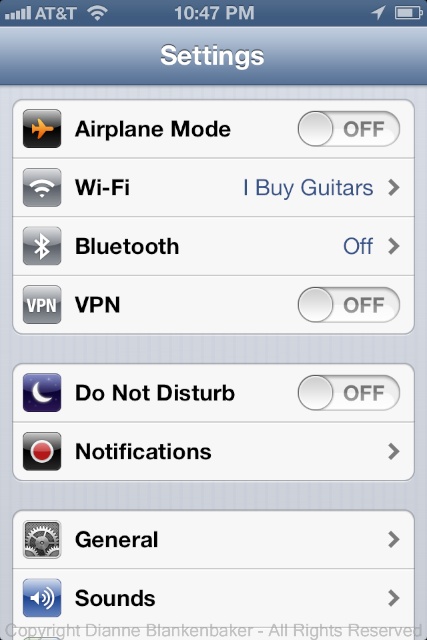
Now decide on your scene. If you don’t have one, you could try setting the phone up in your living room during a time when people (and/or pets) will be coming in and out. Time-lapse videos of families moving in and out of a room can be quite amusing.

Save and export your movie using the instructions in Lesson 32. Choose the frames per second based on whether you want it to look like a real video or whether you’d rather slow things down. You can also export the video and then go back and export it again at a different speed so you can decide what works best later.

What do you think? Is this a medium you could get into?

Lesson 34: When You’ve Got the Shakes

In Lesson 31, we talked about how adding the iPhone flash can help reduce the blur of slow-moving subjects.  What we didn’t talk about was another way blur can be introduced by movement–the movement of you holding your iPhone.

One way to reduce movement of your phone is to hold it very still.  For tips on how to hold it as steady as possible, see Lesson 6.  Sometimes, it’s hard to hold your phone still–especially if you’re shooting in low-light conditions when holding it still makes the biggest difference.  In those cases, using a tripod would be ideal, if a little silly looking.

In Lesson 25, we looked at using a telephoto attachment from Photojojo that includes a mini-tripod for your iPhone.  You don’t have to use the telephoto attachment to benefit from the tripod.  If you are taking landscape photos, especially in low-light, and you purchased the telephoto kit, try using the tripod without the telephoto lens to see how it improves your landscape photos.

There are other options if you don’t have a tripod for your iPhone.  For one, you can find a place to set the iPhone if you can balance it or prop it against something to eliminate your shake.  If you are a die-hard iPhone user, you may also find some of the various attachments for the iPhone that are helpful for keeping it stable.  For example, a car holder that doesn’t block the camera, a mount on your bike, or even the LifeProof life vest I showed in Lesson 19.  The large block size of the life vest makes the iPhone easier to grip securely.  It also makes it easier to stand on edge.  As a bonus–if your iPhone falls off its perch, there’s not much chance it will get damaged!

But let’s say you want to take a photo when there is no way to prop up your phone, or, the only place you could prop your phone would not result in getting the photo you want.  Another option is to use the “image stabilization” feature provided in many camera apps.  Unfortunately, not the default camera app from Apple, but, yes, it is one of my favorite features in the Camera Awesome app.

Unlike expensive gear that comes with image stabilization features that work mechanically, the Camera Awesome app uses the gyroscope in the iPhone to determine if the phone is moving.  If it is, it waits until a moment when you’re still before taking the photo.  This works great in that pushing the volume-up button or touching the shutter button on the screen creates most of the motion.  This setting allows the movement to settle before the picture is taken.

The downside is that the pause can cause you to miss the exact shot you wanted when your subject is fickle (like my dog) and decides to walk away while you’re waiting for the photo to take.  I highly recommend it when you’re taking photos of subjects that are either still or cooperative.

Here’s how to turn the image stabilization feature on in the Camera Awesome app (downloaded in Lesson 7):

Your Assignment:  Get out the Camera Awesome app and turn on the image stabilization feature.  Take some photos of a scene that isn’t moving.  Now, turn it off and take the same photos.  Do you notice a difference?  If so, you might want to make it a setting you use a lot.  If you happen to have very steady hands, you might prefer not to use it because of the delay it can introduce.

Lesson 33: How Far Can You Flash?

In the past couple of lessons, we’ve been talking about how to deal with moving subjects with an iPhone camera.  I showed you how to use the flash both in the traditional “flash” mode and in the flashlight mode in Lesson 31.  I made the comment that the iPhone (4S) flash will do you no good from distances more than 5 feet.

Afterwards, I suffered from guilt because I haven’t actually measured when the LED light that passes for a flash actually ceases to be effective.  So, today, I thought I would rectify that.

I set a glass with flowers in it at one foot intervals and took a photo with the flash set to on using Camera Awesome.  There is no difference in the effectiveness of the flash based on the app you use, so this is app independent.  However, I also wanted to test whether the exposure was any better using the flashlight mode versus the “flash” mode just to see if the app compensates for the extra light of the flash or not.

So, here is what I discovered:

At one foot away, the flash caused over exposure and “hot” spots.  As you can see, the effect gets better as the subject gets further back from the phone until you get to about 5 ft.  Then, the subject falls outside the circle of light cast on the floor.  However, notice that the shadows in the background all the way back to the door (at 10′ 6″) are lighter with the flash.

This is good information–while the flash may not be good for lighting a subject at more than 5′ away, it can be used to cast light into shadowy areas up to 11′ away.  Also notice the bright circle on the floor and how distracting it becomes when the subject is outside of that circle.  Raising the phone up and away from flat surfaces will help to reduce this effect.

As for whether the flashlight vs flash setting work better, well, let’s try some side-by-side comparisons.  Here is the flower vase side-by-side with the flash setting versus the flashlight setting (at 3 feet):

As you can see, the exposure looks more even with the flashlight setting than with the flash–the circle of light on the floor is far less pronounced.  So, unless you want a more pronounced circle of light, if you have enough battery life to turn the flashlight on, do it.  However, bear in mind that the flashlight setting consumes more battery life because the light is on longer.

Your Assignment:  Try using the flash at various distances in different lighting.  The flash will make a more noticeable difference in near-dark situations than it will in well-lit scenes.  It’s often enough light to get a photo in a totally dark room if you’re in range.  Also, using the flashlight setting will help the camera find focus when the scene is very dark.  Make sure you have a fully charged battery!

Do you like the flash or flashlight setting better?  If the answer is “it depends,” what are the circumstances where the flashlight setting helps the most?

Lesson 32: Fast Camera

Seems like it’s about time to download a new app–it’s been quite a few lessons since we did that.  Since yesterday’s lesson was about dealing with moving subjects, let’s continue with that theme and give Fast Camera a try.

Fast Camera is an app designed to take a bunch of photos really quickly.  That’s its forte.  There are settings in other camera apps that will take bursts of photos in rapid succession, but there are 2 particular features about Fast Camera that made it worth the $1.99 to me:

  1. The default setting is to start shooting as soon as you launch the app.
  2.   You can take a series of still photos and then export them as a video from the app.

Let’s talk about why I like these 2 features so much.  First, when I’m out with my dog and he does something cute, it’s pretty standard that he stops doing whatever it was by the time I get my camera app out and start shooting.  The only thing that would make it better is if I could set the camera button on the iPhone lock screen to launch this app instead of launching the default iPhone camera app.  None-the-less, it’s still a time saver to launch the app and point.  I can adjust the settings while it’s shooting if needed.  It just keeps firing away.

Second, I love making movies from stills.  I don’t know why.  There’s just something fun about the gap in time created by stills being run together as a movie.  Here’s an example of a movie from stills of my cooperative husband jumping up and down:

Isn’t that much funnier than if I would have recorded it as a video to start with?

But here’s the thing, whether you like the instant launch or not (you have to remember to stop it if you’re not ready to keep shooting or you’ll end up with 1000 photos–this setting can be changed if you don’t want it to start shooting on launch), the fact that it fires lots of super-fast photos helps ensure you get at least one good shot of a moving subject.

It’s really hard to stop motion with an iPhone camera.  But, as you can see in these photos of my husband jumping, there are often moments when a moving subject is moving slowly enough that the motion can be stopped.  Here, when my husband reached the peak of his jump and gravity took over, there is a moment when his momentum is switching from upward to downward.  In those moments, I was able to get relatively sharp photos:

Similarly, when my dog walked into my frame and stared (bewildered) at my husband’s antics, I caught him in the moment he was holding still.  Compare that to the photo on the right when he turned his head quickly to figure out what I was doing.

You’re Assignment:  Consider if you’re willing to spend $1.99 for this app.  If so, download it and go chase something moving.  Launch the app and stop it when you have enough photos of your moving subject.  Here are a couple of settings to check out:

After you’ve taken a series of photos of a moving subject, try exporting them as a video.  To do this:

Lesson 31: Blur and Flash

Something we haven’t talked about yet is how to deal with motion.  There are two sources of motion to deal with when shooting with a smart phone:  1)  Subject motion, and 2)  Photographer motion.  Today, we’re going to talk about subject motion.

When it comes to subject motion, if we were using fancy cameras with lots of manual controls, we could stop the motion pretty easily.  Since we’re not, we have limited control over whether subject motion will show up in a photo or not.

Since my dog will never hold still when I try to take pictures of him, I thought I would use him to demonstrate how to deal with a moving subject.  Of course, for once, this is the day he chose to fall peacefully asleep on the couch and not move a muscle!

In any case, one of the easiest ways to deal with motion is to add light.  The more light you can get on your subject, the less motion will show up in the photo.  I could explain to you why this is, but I promised Gina, the inspiration for this blog, not to talk about stuff like that, so you’ll just have to trust me.

Sometimes, we can’t control whether we have light on our subject or not.  When a subject is moving, it’s pretty hard to run around turning on lights without missing the moment.  Fortunately, if we’re able to get up close to our subject, the iPhone comes equipped with a built-in “flash.”

To be honest, the LED light on the iPhone is not great, but it can make the difference between getting a photo and not getting any photo.  Just remember that it’s not going to do you a bit of good if your subject is more than about 5 feet away (give or take).  It will just waste your battery.

Most camera apps have different choices for how you use your flash.  Today, we’re going to look at Camera Awesome.  First, let’s try turning the flash on.  Here’s how to do that in Camera Awesome:

In the traditional “flash on” setting, the flash will turn on and off quickly with each photo you take.  I like to turn the flash either on or off rather than using the Auto flash mode–I don’t usually agree with the camera as to when it should use the flash.

There’s actually one other option I like a lot, however.  That’s the flashlight setting. This turns the light on continuously.  This is not a great option if your battery is running low, but it’s great if you’re literally shooting in the dark.  I also feel I get better exposure when I set the exposure with the light on, but I haven’t done apples to apples comparisons to prove that.  Here’s how to turn the flashlight option on:

Your Assignment:  If you don’t have a dog to work with, try following a human around in the house and seeing if you can get some photos of them where their motion doesn’t show.  Note that the iPhone flash isn’t bright enough to help freeze rapid motion, but it can help with slower movements. Also remember that you have to be very close.  (WARNING–if you’re photographing a human (or canine) subject, be careful not to shine the flashlight directly in their eyes.  This may cause enough discomfort at close proximity that your subject will never agree to model for you again.)  Can you see a difference in the amount of blur in your photos?

Lesson 28: Power Rules

I  shoot with the iPhone 4S.  I’ve had it for about 2 years now and one of the problems I sometimes encounter is the annoying low battery warning coming on when I’m in the middle of taking pictures.  It seems inevitable that right when I get to where I most want to take a photo, my phone shuts down.

Since you can’t get any photos without power, this is an important consideration as an iPhon(e)ographer.  Here are some rules that will help reduce the chances of this happening:

  1. Think of your phone as your camera.  One of the problems of using an iPhone (or any smartphone) as your camera is that there is a tendency to forget it’s your camera.  By this, I mean when I’m getting ready to go to a shoot with my DSLRs, I always have at least one spare battery fully charged for each camera in my bag.  When I’m just going out, I grab my phone because I always grab my phone.  I’m not necessarily thinking like I’m going to a shoot.  Start thinking to yourself, “I’m going somewhere and I might want to take pictures” before you get far from a charger.  Plug the phone in before you go.  Leave with the phone fully charged.  If you really want long battery life, consider an external battery case that can double your battery life (personally, I find these too bulky).
  2. Turn off the stuff you don’t need.  If you’re going out, you probably don’t need your wifi on.  You may not need your bluetooth.  And, if you have a bunch of apps running that use location services, turn them off.  Any reminders that are set based on location will also consume more power.  If you’re going to be away from a power source all day and being able to take pictures is really important to you, you might even consider putting your phone in Airplane mode to consume the least amount of power.  If you’re going out in the woods where you can’t get much of a signal anyway, you’ll really burn through battery life as your phone continually tries to unsuccessfully connect.   You can also save this extreme step of turning your smartphone into a brick that takes photos until your battery starts getting low–it will save a lot of power consumption.
  3. Charge when you can.  Let’s say you’re like me and you can’t find your way to more than a half-dozen places in your car and you really need to run a GPS app to get where you’re going.  These apps not only use the location services and GPS, they also do network searches, and they keep your screen on while in use, making them some of the heaviest power consumers.  Have a car charger and use it if you’re using one of these power-hogs.  You’ll arrive where you’re going with a fully charged phone and get there without getting lost.
  4. Use the sleep button.  The button on the top of the iPhone puts the phone to sleep, sort of.  Many things keep running, but the screen turns off and this can save battery life.   Use it!  Especially when you are using a camera app.  I can’t tell you how many photos I have that look like this:
    The secret world inside my shirt pocket
    The secret world inside my shirt pocket

    This is the inside of my pocket (with the flash on)!  These kinds of random photos not only waste battery life, they also waste your time deleting them!

  5. Manually control the flash.  In whatever camera app you’re using, make sure the flash is not set to “Auto.”  The flash consumes power and, if you fail to follow rule 4, may go off in your pocket.  You can turn it on if you need it, but when it comes to conserving battery power (and taking better photos) it’s better for you to decide when to use than to let the phone decide.
  6. Consider the battery before you shoot.  If you’re out for a 10 minute walk with a fully charged phone, take as many photos as you want.  Try every angle you can think of.  Try 14 different camera apps with 10 different settings each.  It’s a great way to learn.  But, if you’re out on a trail all day long, you might be a little more selective about how many apps you use and how many photos you take of the same thing.  It’s also helpful to know if there’s something particularly spectacular (like an overlook) coming up that you want to be sure to save power for.  This is one of the things I like about out-and-back hiking routes–I can take photos judiciously on the way out and then shoot to my heart’s content on the way back because I know what to expect along the way.

Your Assignment:  Double-click the Home button at the bottom of your phone.  The screen display will slide upwards and expose all the apps you currently have running:

SunsetReflection2 3

Hold your finger on one of the apps until all the apps start wiggling and have a red-and-white “-” on them.

The “-” appears when you hold your finger on a app for a few seconds

Tap the “-” to close all the apps that are running.

When all apps are shut down, this is what you'll see
When all apps are shut down, this is what you’ll see

If you’re not familiar with where to turn off bluetooth, etc, go to the “Settings” app.

The settings app icon looks like a gray gear


Check out the Airplane, wifi, and bluetooth settings at the top.

SunsetReflection2 7

Also scroll down to the Privacy settings, tap it and check out the Location Services.

Finally, pick a day when you’re not going to need to take pictures at the end of the day.  Note the time you unplug your phone.  Use your phone normally all day, but don’t charge it.  At the end of the day, if it still has charge, start taking photos.  See how many photos you can take before the phone dies.  This should give you an idea of how important it is to recharge before going out after an average day of use.